A missing IDX listing may be blocked by display rules, delayed in the feed, or hidden by website settings. Start with 2 searches: the exact MLS number and the full address. Clear all filters, then check whether the problem affects one listing, one page, or all listings from the same MLS.
These 10 checks help narrow down the cause:
- IDX opt-outs: Ask the broker to verify seller instructions and listing-level and brokerage display permissions.
- Incomplete MLS approval: Confirm the agreement, vendor access, and live website domain are approved.
- Feed delays: Compare MLS change times with the provider’s last import and update schedule.
- Ineligible listing status: Check local display rules and the website’s status mapping.
- Unsupported property types: Verify that the feed covers the listing’s type and subtype.
- Search filters: Remove search limits and check saved page or widget settings.
- Map or address errors: Compare the MLS address and map pin with the website.
- Agent or office ID mismatches: Check site filters against current MLS IDs, including co-listing fields.
- Feed connection errors: Ask the provider to check failed imports, access errors, and connection alerts.
- Website caching: Compare the provider’s direct search with the public page before clearing affected caches.
Fix source-data errors through the broker or MLS; send feed and display issues to the IDX provider. Include the MLS number, affected URLs, screenshots, and test times with time zones. Never change accurate listing data or override seller restrictions just to make a property appear.
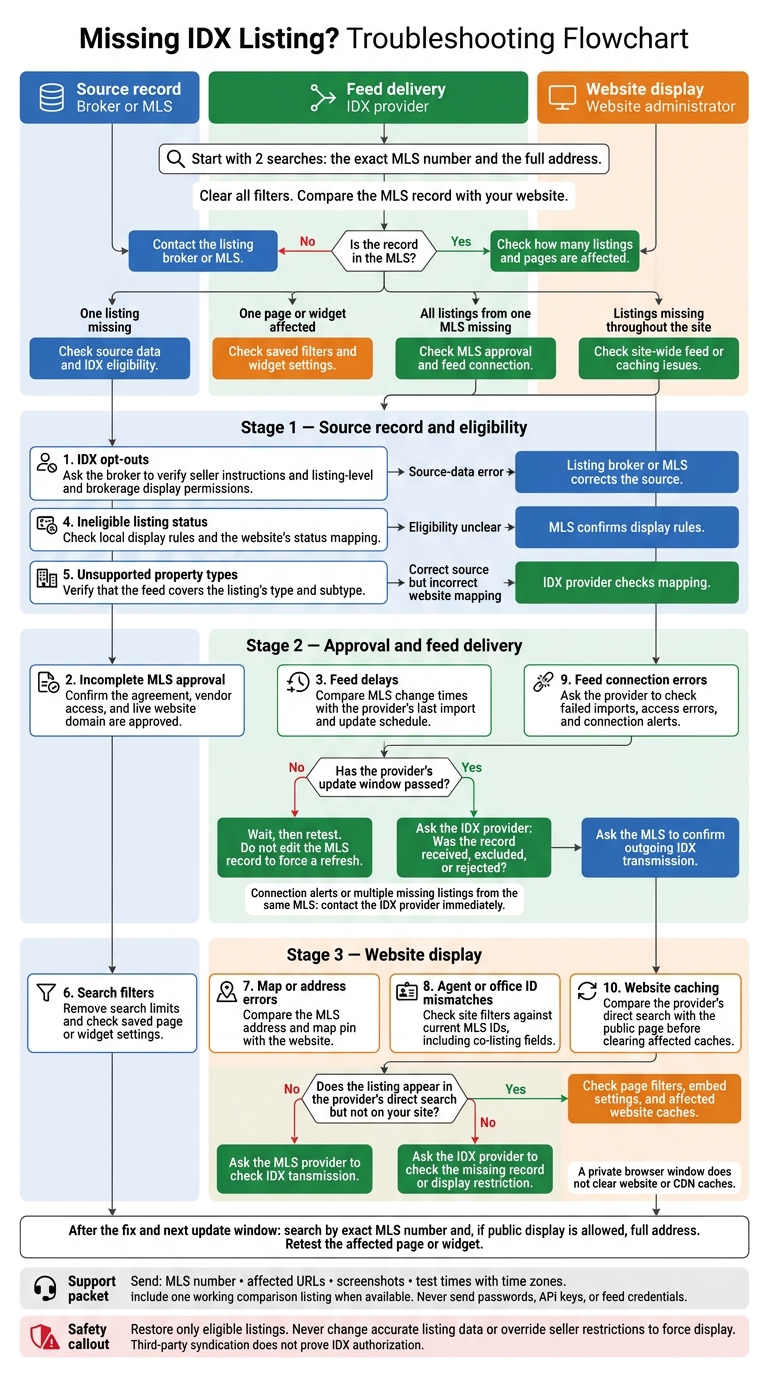
Missing IDX Listing? Troubleshooting Flowchart
Check How Many Listings and Pages Are Affected
After searching by MLS number and address, check where the listing stops appearing. Find out whether the issue affects one listing, one page, or the whole feed. Look for the property on its listing detail page, in search results, and in the affected map or featured-listing widget. Then check those same locations for a listing from the same MLS that you know is eligible.
Use the results to narrow your next step. If only one listing is missing, check its source data and IDX eligibility. If one widget fails but other pages work, review that widget’s saved filters and settings. If all listings from one MLS are missing, check that MLS’s approval and feed connection. Missing listings throughout the site suggest a site-wide feed or caching issue.
Once you know the scope, compare the MLS source record with the website. Ask the listing broker or MLS to fix any missing or incorrect source data. If the source is correct, ask the IDX provider whether it received, excluded, or rejected the record. If the listing appears in the provider preview but not on your site, wait until the provider’s update window has passed, then check website settings and caching.
In your notes, include the affected listing and page counts, MLS or board name, MLS number, listing status, listing agent and office IDs, and one working comparison listing. Record the source and site update times separately from the time you ran your test. Use a format such as:
Nov. 16, 2026, at 10:30 a.m. ET
A listing can appear in third-party syndication and still be blocked from IDX display. Syndication and IDX have separate permission rules. Confirm IDX authorization and display rules with the broker or MLS.
1. MLS Syndication or IDX Opt-Out Settings
If a listing is eligible in the MLS but still missing, check the permission fields first.
What to check
Ask the listing broker to review the listing’s IDX authorization, the seller’s Internet display instructions, and the brokerage’s IDX participation. Check fields such as “IDX,” “Internet Display,” and “Withhold Address.”
A seller can withhold the entire listing or just the address. A brokerage-wide opt-out can also block every listing from that broker - even if individual records show permission to display them.
Corrective action
Fix the blocked setting in the source record first. Ask the listing broker to confirm the seller’s written instructions, update any MLS fields they’re allowed to change, and check that the changes were saved and submitted. If the brokerage has opted out of IDX participation, the broker must resolve that through the MLS. Never override a seller’s restriction.
Who to contact and when
Contact the MLS if a record with display permission stays hidden or the corrected record hasn’t been transmitted. If the listing is still missing after the MLS confirms transmission and the feed refreshes, contact your IDX provider.
Send the MLS number, affected page URL, broker and office identifiers, screenshots of the permission fields where allowed, and the correction timestamp.
If the permissions are correct, check MLS approval and feed timing next.
2. Incomplete MLS Approval
What to check
If permissions are correct but the listing is still missing, check your MLS approval status. Submitted doesn’t mean approved. The MLS/IDX agreement must be approved and cover vendor authorization.
Verify the brokerage’s legal name and office ID, your affiliation with the correct MLS or board, and all required broker signatures. If you’ve changed brokerages or moved to another MLS or board, you may need new approval - even if your website hasn’t changed.
Check that the exact production domain, including subdomains, is authorized. Approval for one site doesn’t cover every site.
Corrective action
Send any missing signatures or corrected brokerage details, and get MLS approval for the production domain. Complete MLS approval before requesting activation. The provider needs the required MLS authorization and data agreement before it can enable access. After approval, confirm that the feed has been activated and refreshed.
Who to contact and when
Contact your broker about signatures or office-affiliation issues. For application status and domain approval, contact the MLS or board. If your request is still pending after five business days, ask what’s missing and when you can expect a decision.
Once approved, send EasyAgentIDX the approval email, MLS name, agent and office IDs, listing MLS number, approved domain, and submission date. Ask support to confirm receipt, activate access, and refresh the feed.
3. Feed Update Delays
If permissions and approvals are correct, a feed delay is the next likely cause.
What to check
Line up the timestamps in the same time zone. Compare the listing’s MLS entry time, modification time, and first appearance on the IDX site against the provider’s last completed refresh and published refresh window. Include the website’s “data last updated” time.
The MLS must send the record before the provider can process it.
Corrective action
If the listing is still within the refresh window, wait, then search by exact MLS number and address. Don’t edit the MLS record to force a refresh.
Check other recent listings from the same MLS, too. If several are missing, the delay may affect more than one record.
Who to contact and when
Contact EasyAgentIDX once the refresh window has passed, or if the last-refresh timestamp is out of date. Send the MLS number, website URL, entry and modification timestamps with time zones, and screenshots. Ask whether the record was received, rejected, or processed but not displayed.
If EasyAgentIDX never received the record, ask the MLS to confirm that it was included in the outgoing IDX feed and transmitted successfully. If the record wasn’t received or was rejected, involve the listing broker when the MLS identifies needed source-data or display-permission corrections.
If the refresh window has passed and the listing still doesn’t appear, check whether its status allows it to be displayed.
4. Listing Status Not Eligible for Display
What to check
Compare the exact MLS status with local IDX display rules and your site’s status mapping. Active listings are generally eligible for display. Contingent, pending, and sold listings appear only when the MLS allows them and your site labels them correctly.
Expired, withdrawn, canceled, coming-soon, temporarily off-market, and “do not display” statuses are often excluded, depending on MLS rules. Check the status-change date, the on-market date if applicable, and any seller display restriction.
Corrective action
If the MLS allows display, confirm that your website supports the status and maps it correctly. Ask your IDX provider to check the incoming status code, display label, and eligibility filter, or use an MLS API to verify the raw data yourself.
Never change the MLS status just to force display. Only the listing broker or an authorized MLS user should correct an inaccurate source status, following local rules and the transaction’s actual condition.
Who to contact and when
Contact the listing broker if the source status or seller restriction is wrong. Ask the MLS when eligibility is unclear. Contact your IDX provider if the listing is eligible but missing or mislabeled.
Send the MLS number, exact status, status-change date and time with the time zone, on-market date if applicable, MLS display rule, search URL, and screenshots.
If the status is eligible but the listing is still missing, check whether your site supports the property type next.
5. Unsupported Property Types
What to check
If the listing status is eligible, check whether the property type is covered. Compare the MLS property type, subtype, and for-sale versus rental classification with your approved feed coverage and site search categories. Modern solutions like the EasyAgentIDX platform offer flexible search widgets to help manage these classifications.
Land, residential income, manufactured homes, and commercial properties may fall outside a residential feed or need separate setup. A broad label like “Residential” does not confirm coverage.
If your approved feed excludes the property class, request coverage. If it includes the class, fix the category mapping.
Corrective action
If the source classification is wrong, have an authorized MLS user correct it. Do not relabel the property to force display. If the classification is correct but unsupported, request eligible coverage through the MLS and IDX provider. You may need a separate property class, feed, or approval.
If the feed already includes the property class, ask your provider to map it to the right website category and enable that category in search.
Who to contact and when
Contact the broker for classification errors, the MLS for coverage rules, and support for feed mapping. Include the MLS number, address, exact type and subtype, affected search URL, and whether other listings in that class appear. Retest after the updated feed is processed.
If the property type is covered and mapped correctly, check the search filters next.
6. Incorrect Search Filters
If an eligible listing is missing from only certain searches, pages, or widgets, a filter may be hiding it.
What to check
Clear all active filters, including minimum and maximum price, beds, baths, square footage, property type and subtype, status, city, ZIP code, neighborhood, radius, and drawn-map boundaries. Make sure the selected status filters include the listing’s eligible status.
Check both visitor-selected filters and admin-set widget filters. A saved search or widget may limit results to a specific agent, office, MLS-number list, or featured set.
Corrective action
Run three tests: an unrestricted search, an exact MLS-number search, and a search on the affected page or widget.
If clearing the filters makes the listing appear, add the restrictions back one at a time to find which one hides it. Update the search or widget setting, save your change, and test again while logged out. Keep narrow filters only when the page is meant to show a smaller set of listings.
Who to contact and when
If the listing appears in unrestricted results but not in a specific widget, ask your IDX provider to review the widget’s configuration and saved filters. Send the MLS number, full address, exact filters used, screenshots, and the time you tested.
Contact the broker if the MLS record has the wrong price, bedroom count, bathroom count, property type, address, or geographic area. Contact the MLS if the record is correct but the permitted property types or visibility rules are unclear.
If all filters are clear and the listing still doesn’t appear, check the map pin or address next.
7. Map or Address Errors
What to check
If filters are clear but the listing still doesn’t appear on the map, check the address data. Compare the MLS street address, unit number, city, state, ZIP code, latitude, longitude, and map pin with what appears in the IDX display.
Even a correct address can land in the wrong spot. If address search finds the listing but map search doesn’t, the pin or search boundary is likely wrong.
Corrective action
Correct the source address or coordinates in the MLS - not on the website using the MLS-approved correction or mapping tools. Save the change, wait for the updated feed to process, and test again. Don’t use a nearby address just to force a match.
Who to contact and when
Contact the listing broker if the MLS address, ZIP code, unit number, or coordinates are wrong. Contact the MLS help desk if the address is rejected or the mapping tool can’t place the property accurately.
If the MLS record and pin are correct but the website still places the listing incorrectly, ask the IDX provider or website administrator to check the site’s map or search data. Send the MLS number, screenshots of both maps, the search URL or boundary used, expected coordinates if available, and the date and time you tested.
8. Agent or Office ID Mismatches
What to check
If the map and address are correct, check the agent and office IDs next. Compare the MLS number, listing-agent ID, listing-office ID, and brokerage name in the MLS against the IDs set up on your IDX site.
Confirm the current IDs with the broker or MLS. A wrong office association can keep an otherwise eligible listing from appearing.
For co-listed properties, check the primary listing agent, co-listing agent, primary office, and co-listing office fields. Does the widget include co-listed records, or does it only show listings where the connected agent or office is listed as primary? Test one sole-agent listing and one co-listed listing to see whether the issue affects the whole feed or just co-listing matches.
Corrective action
Ask the broker or MLS to correct any outdated agent, office, or co-listing assignment in the MLS. If the MLS record is correct, ask your IDX provider to update the widget’s agent or office filter and check whether it includes co-listed records. Keep the filter limited to authorized brokerage records.
Who to contact and when
Contact the broker or MLS if agent or office data is wrong or has changed. Once the MLS record is confirmed as correct and eligible, contact the IDX provider. Send the MLS number, full address, confirmed agent and office IDs, any co-listing IDs, and the affected widget URL.
After the next feed update, retest the missing listing and one listing that already matches the filter.
9. Feed Connection Errors
What to check
If approval and timing look right but new listings still aren’t arriving, check the feed connection. Test whether other listings from the same MLS still load. Review the provider’s listing count and last successful import time. Look for alerts about expired tokens, invalid credentials, disabled connections, or failed syncs. A normal feed delay slows updates; an authentication failure can stop them entirely.
Confirm that the connection points to the correct MLS, board, brokerage account, and live domain. If you can’t access those details, ask the provider to verify them.
Corrective action
Ask your IDX provider to repair the existing approved connection by checking credentials, renewing authorization if needed, and restarting the failed sync. Don’t create a duplicate connection or manually copy MLS data to bypass the problem.
Who to contact and when
Contact the IDX provider immediately if you see connection alerts, stale imports, or multiple missing listings from the same MLS. Send the error message, affected URL, a screenshot, and the time the failure occurred, including your time zone. Ask for a ticket number and an estimated resolution time.
Involve the MLS or board if the provider finds denied permissions, an inactive IDX agreement, an unapproved domain, or an MLS-side data-delivery problem. Ask the provider to share its findings so the MLS can verify authorization and feed status.
If the feed is healthy but the listing still doesn’t appear, check website caching next.
10. Website Caching Issues
What to check
If the MLS record is correct and the feed is current, but the listing still doesn’t appear on the public site, check the cache next.
Search for the MLS number and full address in a private browser window. A private window does not clear website or CDN caches. Compare those results with the provider’s uncached widget or search page. If the listing appears only in the provider’s view, stale website content is a likely cause.
Corrective action
Ask your website administrator to clear the CMS, plugin, hosting, CDN, and widget caches for the affected URL. Start with specific URLs rather than the whole site to limit disruption.
Reload the affected page in both private and normal browser windows. Check that the listing appears with its current details. A purge notice isn’t enough - verify the updated page or CDN response.
Who to contact and when
Contact your website administrator when the provider’s widget and your public site show different results. If the listing is also missing from the provider’s uncached view, website caching isn’t the issue. Ask the IDX provider to check for a display restriction or missing source record.
Send the MLS number, address, affected URLs, screenshots, test times with your time zone, and a record of which caches were cleared. Involve the listing broker or MLS if the provider finds a display restriction or missing source record.
Troubleshooting Table: Checks, Fixes, and Contacts
Use this table to work through the checks in order and match each likely cause with the first check, fix, and contact - without repeating the full steps.
| Cause | First check | Primary fix | Contact |
|---|---|---|---|
| 1. MLS syndication or IDX opt-out | MLS Internet-display, IDX, syndication, and seller privacy settings | Correct unintended opt-outs; keep valid seller restrictions in place | Listing broker; MLS if permissions don’t update |
| 2. Incomplete MLS approval | MLS application status and approval | Submit missing documents; confirm approval and activation | MLS for approval; IDX provider for activation |
| 3. Feed update delays | MLS last-modified time and the provider’s last import time | Wait for the next scheduled update, then request an import check | IDX provider; MLS if the record wasn’t transmitted |
| 4. Listing status not eligible for display | Exact MLS status | Have the listing broker correct the MLS status; don’t force an excluded status into the widget | Listing broker for corrections; MLS for eligibility |
| 5. Unsupported property type | Listing property subtype and supported categories | Enable the category, request coverage, or correct the classification | Listing broker for classification; MLS or IDX provider for coverage |
| 6. Incorrect search filters | Exact MLS-number search with all filters cleared, followed by a full address search | Broaden or correct saved search filters | Website administrator; IDX provider for filter errors |
| 7. Map or address errors | MLS address, ZIP code, coordinates, and map pin | Correct the source address or coordinates | Listing broker or MLS for source errors; IDX provider if source data is correct |
| 8. Agent or office ID mismatches | MLS agent and office IDs compared with site filters | Correct the MLS roster or listing assignment, or update the site’s agent and office mapping | Broker or MLS for source IDs; IDX provider for site mapping |
| 9. Feed connection errors | Connection alerts and last successful import | Restore the approved connection, then rerun the import | IDX provider; MLS for authorization or delivery issues |
| 10. Website caching issues | Provider preview compared with the public page | Purge the site cache and refresh the search index or widget | Website administrator for site caches; IDX provider for provider cache |
Check These Items in Order
Follow this sequence to narrow down whether the issue comes from the source record, feed, or cache before you escalate.
- Find the record first. Search for the exact MLS number and full address in both the MLS and your site. If neither search finds it in the MLS, contact the listing broker or MLS.
- Confirm display permissions. Ask the broker to verify that the listing is approved for IDX display. Check seller Internet restrictions and address-display restrictions separately. Keep valid restrictions in place.
- Clear the filters and map boundary. If the listing then appears, the issue is page configuration - not feed delivery.
- Compare update timing. Check the MLS change time against the last successful import and the provider’s update window. If multiple listings from the same MLS are missing, check approval or compare IDX connection status next.
- Test the direct IDX search in a private browser window. If it works there but not on the embedded page, ask the website administrator to check page filters, embed settings, and cache.
What to Send Your Broker, MLS, or IDX Provider
Once you’ve narrowed down the cause, send one complete packet to help the team review the issue faster.
Identify the listing. Include the MLS number, full address, MLS or board name, current status, price, property type, and the listing agent’s and office’s names and IDs.
Include the timeline. Share the entry time, last modification time, and last site check, with time zones for each. Add the MLS export timestamp if you have it.
Show where it fails. Send the affected page and widget URLs, including both working and failing pages. Attach screenshots showing filters, the map area, result counts, and errors. Include your test results, browser, device, test time, and whether private browsing changed the result.
Direct each request to the team that can act on it:
- Broker: Verify source data and display permissions.
- MLS: Verify IDX eligibility, restrictions, and export timing.
- IDX provider: Check receipt, import errors, field mapping, and any display, indexing, or cache issues.
Keep sensitive information out. Never send passwords, API keys, feed credentials, authentication tokens, or private seller information. Redact private remarks, showing instructions, security codes, and private contact information from screenshots and attachments.
Conclusion: Fix the Cause, Then Check the Listing
If the listing is still missing, check permissions first, feed delivery second, and website display third.
Once the fix posts, wait for the next update window. Then search by the exact MLS number and, if public display is allowed, the full address. Retest the affected page or widget in a private window.
Restore only eligible listings. Don’t force withheld listings or addresses to appear.
FAQs
Can changing my website domain hide my listings?
Yes. EasyAgentIDX requires you to register and authorize your new domain in its dashboard before your embedded widgets can display listings there.
To restore listings, update the Website URL in your EasyAgentIDX settings and move your existing script tags to the new site. Then test your widgets to make sure listing detail links and search functions point to the correct site.
Why do my listings keep disappearing?
Check your dashboard to confirm your MLS board connection is marked Approved. Boards awaiting approval won’t display data. If you see authentication errors, regenerate your integration token in settings.
Check that your search filters aren’t too restrictive. Also, confirm the listing hasn’t been removed from the MLS because of a status change or a seller-directed opt-out. Then check your feed update status: sync delays can cause temporary discrepancies.
How can I monitor IDX feed problems?
Test searches against MLS records regularly. Before assuming there’s a technical error, check for seller exclusions and filters that may limit results. Make sure your MLS connection shows Approved; a Pending connection returns no data. Check update timestamps, too - listings typically must update at least every 12 hours.
Run an audit monthly and after any domain, widget, or layout changes. If issues persist, record the affected property, the test time, and any console errors before contacting EasyAgentIDX support.