What Is an IDX Widget? Property Search, Maps, Listings, and More
What Is an IDX Widget? Property Search, Maps, Listings, and More
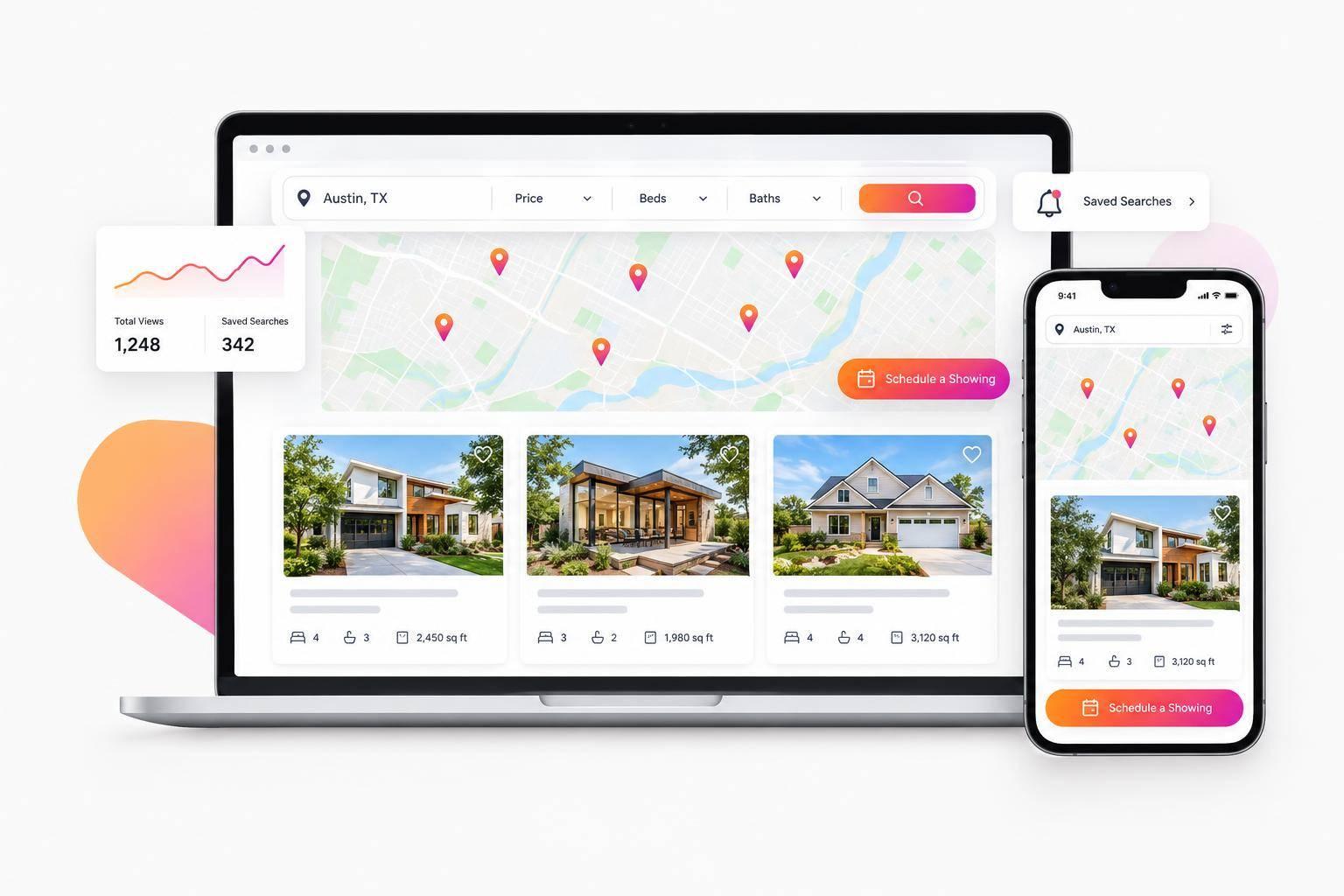
An IDX widget adds MLS property search to your website without rebuilding it. I recommend starting with 1 search page and confirming MLS approval before publishing.
Here’s what you can add - and what to check:
- Search and maps: Let buyers filter by price, location, bedrooms, and other fields, then browse map pins or draw a search area.
- Listing displays: Show homes in grids, carousels, and detail pages with photos and property facts.
- Buyer contact tools: Offer saved homes, saved searches, email alerts, and showing-request forms when supported. A request is not a confirmed appointment.
- Setup and rules: Connect an approved MLS feed, embed the widget, and check required notices, allowed listing data, and update schedules.
- Launch checks: Test mobile layouts, listing links, forms, account features, and analytics.
My starting rule: <u>make the path from home search to agent contact clear</u>. Features depend on your widget settings and MLS permissions - not every setup includes every tool.
Property Search Filters and Maps
Filter Homes by Location, Price, and Features
Once embedded, the IDX search widget turns MLS listing data into searchable, visual results. Buyers can filter homes by location, price, bedrooms, bathrooms, square footage, and property type - including single-family homes, condos, and townhouses.
Results use a responsive layout and pagination. The filters buyers can use depend on MLS permissions and widget settings.
Find Homes with Map Pins and Drawn Search Areas
Map pins stay synced with listing cards, letting buyers compare locations and property details at a glance. Clusters group nearby listings to keep the map from getting cluttered.
With draw-to-search, buyers can outline a custom search area. Results also update as they pan across the map.
Pin accuracy depends on MLS location data, while map behavior depends on widget configuration. These results can then feed into listing grids and property pages.
Listing Displays and Buyer Contact Features
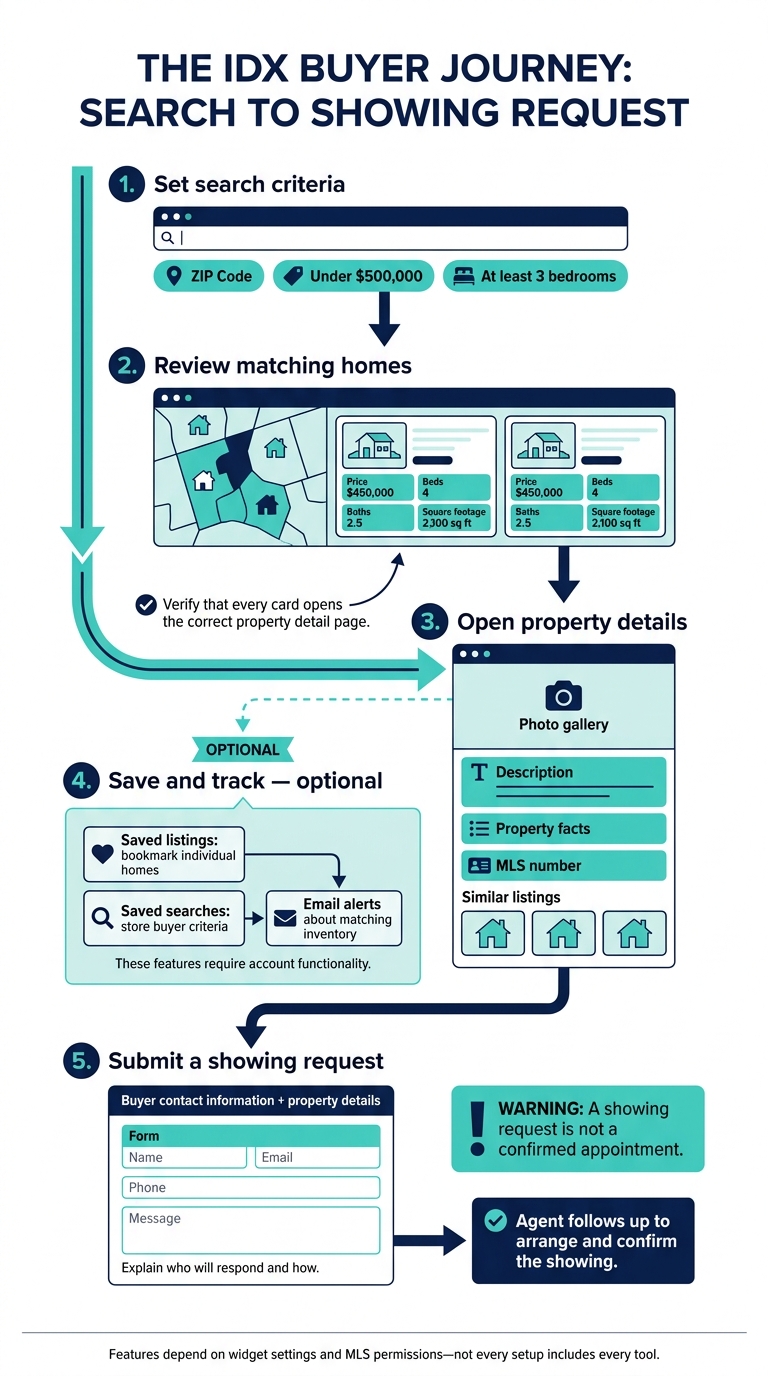
IDX Widget: From Property Search to Showing Request
From search results, buyers move to listing cards, full property pages, and contact forms.
Display Listings in Grids, Carousels, and Detail Views
Once buyers narrow their results, the widget displays matching homes in grids, carousels, or curated featured sections.
Listing cards help buyers compare price, beds, baths, and square footage at a glance. Each card includes a photo and links directly to the home’s detail page. There, buyers can browse the gallery, read the description, check the MLS number, and view similar listings. Verify that every card opens the correct property detail page.
Save Searches and Request Showings
After comparing listings, buyers can save homes they want to track. Saved listings bookmark individual homes, while saved searches store a buyer’s criteria. Automated email alerts notify buyers about matching inventory.
These features require account functionality. The registration prompt should explain what buyers are saving and which updates they’ll receive.
Place a showing-request form beside the property details so buyers don’t have to hunt for a contact page. The form collects their contact information and identifies the home they want to see for agent follow-up. Explain who will respond and how.
A showing request is not a confirmed appointment. The agent must follow up to arrange the visit.
Example: From Property Search to Showing Request
A buyer selects a ZIP Code, sets a budget under $500,000, and requires at least 3 bedrooms. They review results on a map or grid, open a listing’s gallery and property facts, and save the search for alerts about new matching homes. When they find a home of interest, they submit a showing request with their contact information and the property’s details. The agent still has to confirm the showing.
Website Setup and MLS Display Rules
Once your search experience is built, it’s time to prepare it for publishing and check that it follows MLS rules.
Get MLS Approval and Embed the Widget
Confirm your IDX eligibility and get MLS approval before publishing. Embedding the widget doesn’t replace that approval. In EasyAgentIDX, at least one connected MLS board must be approved. A board marked “pending approval” won’t show listings.
Use the visual builder to set filters, brand colors, and layouts. Then embed the generated script on your search page. The widget works with WordPress, Squarespace, Wix, Webflow, Framer, Next.js, or custom HTML.
Set the website URL so listing links lead back to your site. Generate the csi_ integration token under Settings → Integrations and store it securely. For Map Search, add your Google Maps API key.
Once the widget is embedded, MLS rules govern what buyers can see.
Check Attribution, Allowed Data, and Update Schedules
Check your MLS’s requirements for attribution, permitted listing fields, display conditions, and required contact information or notices. These rules control what appears to buyers.
Listings reflect the connected feed, but when they appear still depends on MLS update rules. Confirm the update schedule rather than promising instant updates.
Test Mobile Layouts, Forms, and Analytics
Before launch, test the experience as a buyer would on both mobile and desktop. Check filters, map controls, listing links, photo layouts, and disclosures. Submit forms to confirm they reach the right agent or team.
If registration, saved searches, and listing alerts are enabled, test those too. Use analytics to track searches, property-detail views, and inquiries, and verify that each event registers correctly.
Conclusion: Help Buyers Find Homes and Contact an Agent
An IDX widget adds authorized, real-time MLS listings to your existing website without a platform rebuild. Filters and maps help buyers narrow their search, and property details help them assess homes. Saved searches encourage return visits, while inquiry forms let buyers contact an agent.
Start with one core property search page. Add focused listing displays where they help buyers take the next step, such as similar properties on a listing detail page. This keeps attention on what to do next.
Review EasyAgentIDX’s widgets and confirm that at least one MLS board connection is approved before choosing your setup. Then complete the required approval and testing steps covered above. Make the path from finding a suitable home to sending an inquiry clear, rather than simply putting more listings on the screen.
FAQs
Why are some MLS listings missing from my widget?
Check that at least one MLS board is approved in your EasyAgentIDX account. Listings from boards awaiting approval won’t appear. Your specific board also needs active listings available for the feed.
If both checks pass but listings are still missing, make sure your integration token is valid and your account plan supports the features your widget configuration requires.
Will an IDX widget slow down my website?
An IDX widget is built to fit into your site without slowing it down. EasyAgentIDX uses real-time data feeds and efficient integration methods to fetch property details as needed. This helps your website stay fast and responsive while giving visitors up-to-date MLS listings, interactive maps, and search filters.
How can I protect buyers’ contact information?
To protect buyers’ contact information when using EasyAgentIDX, use the secure Integration Token generated in your account settings. This token serves as your exclusive access credential, allowing only your designated tools to query your listing feed.
Manage these credentials in the secure EasyAgentIDX dashboard. This lets you control how your data is accessed and processed while keeping visitor interactions protected.
Want IDX widgets for your real estate website?
Try EasyAgentIDX Free →