IDX updates can take minutes or hours - not every site follows the same schedule. Check your provider’s documented MLS-to-website update window before deciding whether a listing is late. NAR’s model IDX policy sets a 12-hour minimum update frequency, not a promise that each change will appear immediately.
The total wait depends on MLS delivery, provider processing, search indexing, and website caching. Photos, prices, and status changes may also arrive at different times.
To check a delay:
- Compare the MLS change time with provider sync and website display times.
- Check both search results and the listing detail page. Private browsing won’t bypass server or CDN caches.
- Confirm display permissions and field mapping if only one listing or field is missing.
- Contact support when the documented window has passed. Include the listing number, URLs, timestamps, expected values, and screenshots.
How MLS Updates Reach Your Website
How IDX Updates Reach Your Website
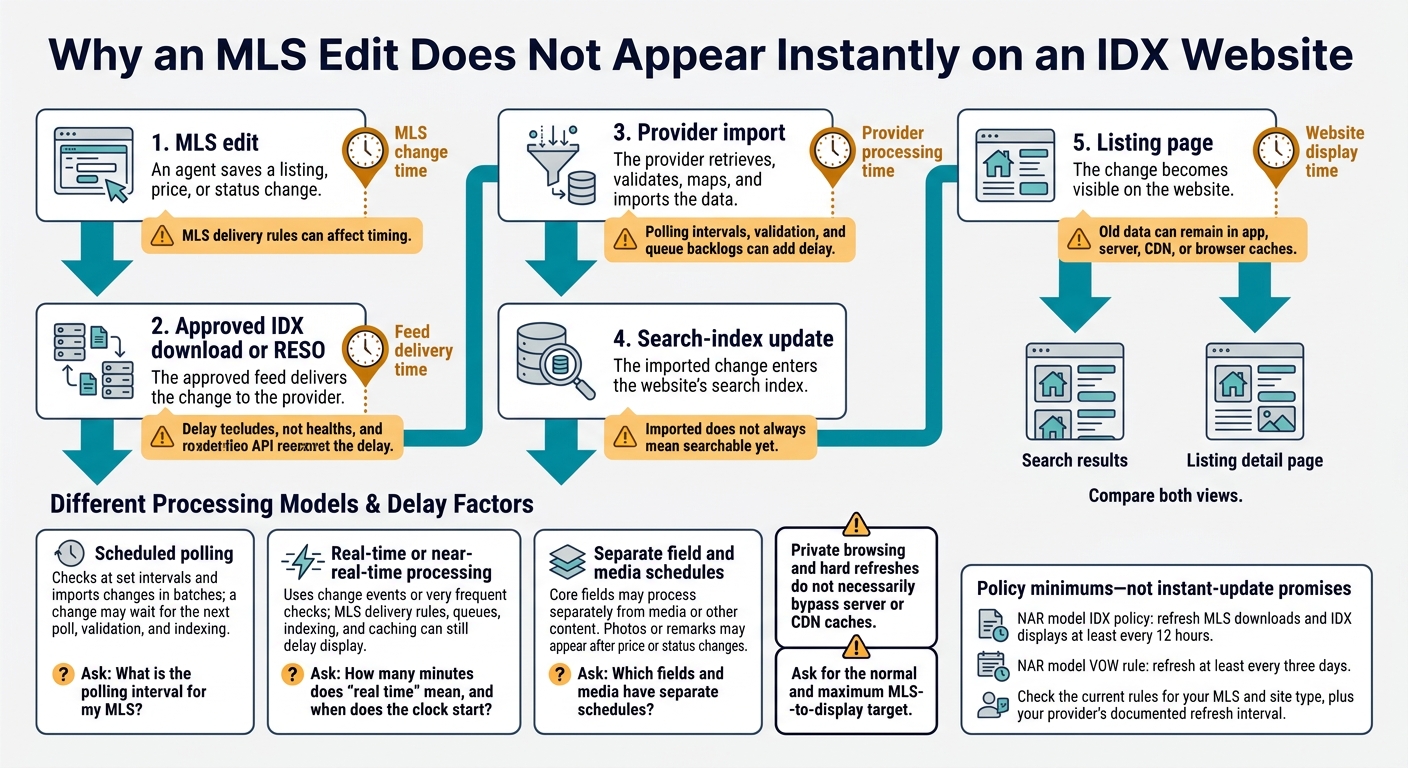
An IDX page doesn’t update instantly. Each MLS change passes through several steps before visitors see it on your site. Track four timestamps: MLS change time, when an agent saves a listing, price, or status change; feed delivery time, when the approved IDX download or Web API delivers it to the provider; provider processing time, when the provider retrieves, validates, maps, and imports it; and website display time, when it becomes visible.
The delay depends on where the change gets held up: the MLS, feed delivery, provider processing, or site caching.
Track a Listing Change From MLS to Website
The path is MLS edit → approved IDX download or RESO Web API → provider import → search-index update → listing page. Even after import, old data can remain in app caches, server caches, content delivery networks (CDNs), or the browser.
Compare the search result with the listing’s detail page, then check a private window or another device. A hard refresh doesn’t necessarily clear server or CDN caches. These separate steps explain why two listing edits can reach your site at different times.
Scheduled vs. Real-Time IDX Updates
| Update model | How it works | Where delay can still happen | Questions to ask the provider |
|---|---|---|---|
| Scheduled polling | Checks the feed at set intervals and imports changes in batches. | A change may wait for the next poll, then go through validation and indexing. | What is the polling interval for my MLS? |
| Real-time or near-real-time processing | Uses change events or very frequent checks. | MLS delivery rules, queue backlogs, indexing, or caching can delay display. | How many minutes does “real time” mean, and when does the clock start? |
| Separate field and media schedules | Processes core fields separately from media or other content. | Photos or remarks may appear after price or status changes. | Which fields and media have separate schedules? |
A Web API defines how data is exchanged - not how fast it arrives. Ask for the normal and maximum MLS-to-display target, rather than just the connection type.
NAR’s model IDX policy requires MLS downloads and IDX displays to be refreshed at least every 12 hours. Its model VOW rule requires refreshes at least every three days. These are policy minimums, not promises about individual changes. Check the current rules for your MLS and site type. Then compare those requirements with your site’s documented refresh interval.
How Update Timing Varies by Listing Change
| Listing change | What must happen before display | What to verify |
|---|---|---|
| New listing | Become IDX-eligible, reach the provider, pass field mapping, and enter the search index. | IDX permissions, eligibility for public display, and whether direct lookup finds it before search results do. |
| Price reduction | The new price must be delivered, mapped, indexed, and displayed without old cached data. | MLS edit time, last successful import, and matching prices on search cards and the detail page. |
| Pending or contingent status change | The status must be allowed for display and mapped to the correct public label. | Exact MLS status, mapping, display rules, and filters that may hide non-active listings. |
| Sold or closed record | The MLS must allow public display, and the provider must process or archive the record as required. | Sold-data permissions, closing-date fields, and whether the listing should remain searchable. |
Photos and remarks may run on separate processing schedules. An updated price therefore doesn’t mean every part of the listing has refreshed. A missing closed listing may also reflect MLS display restrictions rather than a feed failure. Check permissions and field mapping before treating either issue as a synchronization problem. These timing differences provide a basis for checking your site’s refresh window in the next section.
How to Check Your Website’s Update Schedule
Use your documented update window as the benchmark for every timing check in this section.
Confirm Your MLS Connection and Update Interval
Check the update interval documented for your site. Find the exact MLS name and approved connection type in your account documentation, onboarding materials, service terms, or connection-specific reporting. Check those sources - or ask support - for your connection’s expected update window. Each MLS may use a different window.
If your dashboard shows a last successful feed sync, check whether it refers to retrieval, processing, or publication. A sync timestamp shows when the feed returned data, not when the MLS made the change.
Then compare the confirmed interval with the timestamps in your change log.
Compare Timestamps and Check Website Caches
Record the listing ID, changed field, MLS change time, feed-delivery time, provider sync time, website display time, page URL, and time zone. Keep the first observed update separate from the confirmed publication time. Use the same time zone throughout, and mark missing timestamps as unavailable rather than guessing.
Compare the search result with the listing detail page, then check both again in a private window. Note which view is still outdated. Ask support to check app, server, proxy, and CDN cache times. Private browsing does not bypass these shared caches. Before allowing extra waiting time, confirm whether caching is already included in the documented window.
If the delay still exceeds that window, send support the exact listing details.
Ask Support to Confirm Missing Details
Ask support to confirm the last successful feed sync, any field-specific delays, cache duration, how failed syncs are detected, what failure alerts are sent, and the escalation path. Include your MLS name, listing number, affected URL, changed field, and timestamp log so support can review the exact connection.
When to Contact Your IDX Provider
Once an update takes longer than the documented window, it’s no longer an expected delay. It’s a support case.
Spot Delays Beyond the Expected Window
Contact support when the MLS record is correct but your website remains outdated past that window. If you’re still within it, wait. Use the MLS rules and your provider’s stated timing - not a generic 15-minute rule - to decide when to escalate.
Multiple stale listings or an old, missing, or failed sync timestamp call for prompt investigation. One outdated field may point to mapping or listing-level processing. Stale data across many listings may point to feed, import, or cache issues. If the timestamp is missing, ask support to check sync health.
Status removals follow the same timing rules but need faster attention. Confirm the status in the MLS first, then check the website against your provider’s stated removal window.
Send Support the Listing Details
Send one ticket with the MLS name, listing number, affected field, expected and displayed values, MLS change date and time with time zone, URLs, and screenshots.
Explain whether the issue affects one listing or several and whether it appears on search pages, detail pages, or both. Include the cache checks you tried and whether they changed the result.
Ask support to identify where the delay occurred - feed delivery, provider import, indexing, or cache - and give you a resolution estimate. If support repeatedly misses the window or can’t identify the last successful import, follow the provider’s escalation path. Involve the MLS if the issue may violate its rules.
Conclusion: Follow Your Documented Update Window
IDX refresh timing depends on MLS rules, provider polling, and site caching. There’s no universal promise of instant updates.
Once you’ve verified the delay, use your documented update window to decide whether to wait or escalate. Confirm the connected MLS and refresh interval, compare MLS and website timestamps, and check field permissions. Clear the relevant caches, then review both search results and listing details.
If the change takes longer than that window, send EasyAgentIDX support the listing number, affected field, expected and displayed values, timestamps, URLs, screenshots, and cache-test results. These details help support pinpoint whether the delay comes from the feed, sync, permissions, indexing, or cache.
FAQs
Can I manually trigger an IDX refresh?
No, you can’t manually trigger an IDX refresh. EasyAgentIDX automatically retrieves and syncs listing updates as the MLS feed makes them available. You don’t need to export or sync anything manually.
If a listing is out of date, check that your MLS-approved connection is active and your integration token is current. Still having trouble? Note the property URL and timestamp, then contact EasyAgentIDX support or your MLS.
Do IDX updates slow down on weekends?
IDX updates don’t slow down just because it’s the weekend. Refresh timing depends on your MLS feed rules and how often your data connection checks for changes. Those checks typically run throughout the week.
If a weekend update takes longer than your website’s expected refresh schedule, a feed or synchronization issue may be the cause - not a planned slowdown. Record the property details and contact support so they can investigate.
Can I get alerts when IDX updates fail?
Set alerts for failed syncs, stale records, token errors, and failed removals. Check listing statuses, prices, attribution, and lead delivery daily.
If an update seems to fail, note the property details and timestamp before contacting support. Stale data often points to a feed or sync issue - not a website error. If listings stop loading, check that your MLS-approved connection is active and your integration token is current.