IDX Lead Generation: How Property Search Becomes a Qualified Buyer Lead
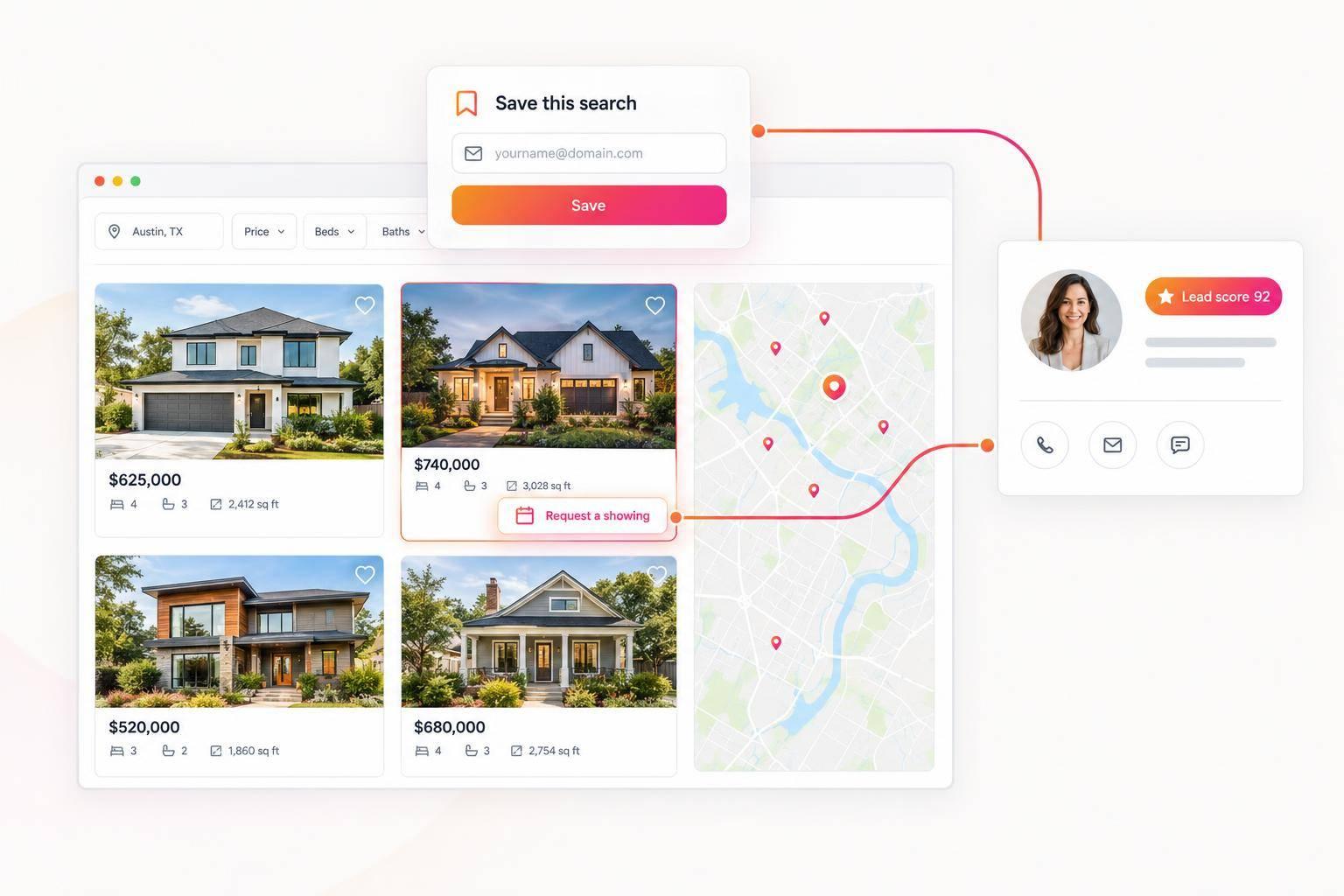
I treat an IDX registration as a starting point - not proof that someone is ready to buy. My approach: let visitors browse, offer saved searches or alerts, and give showing requests with dates and times priority for follow-up.
I build the process around 3 steps:
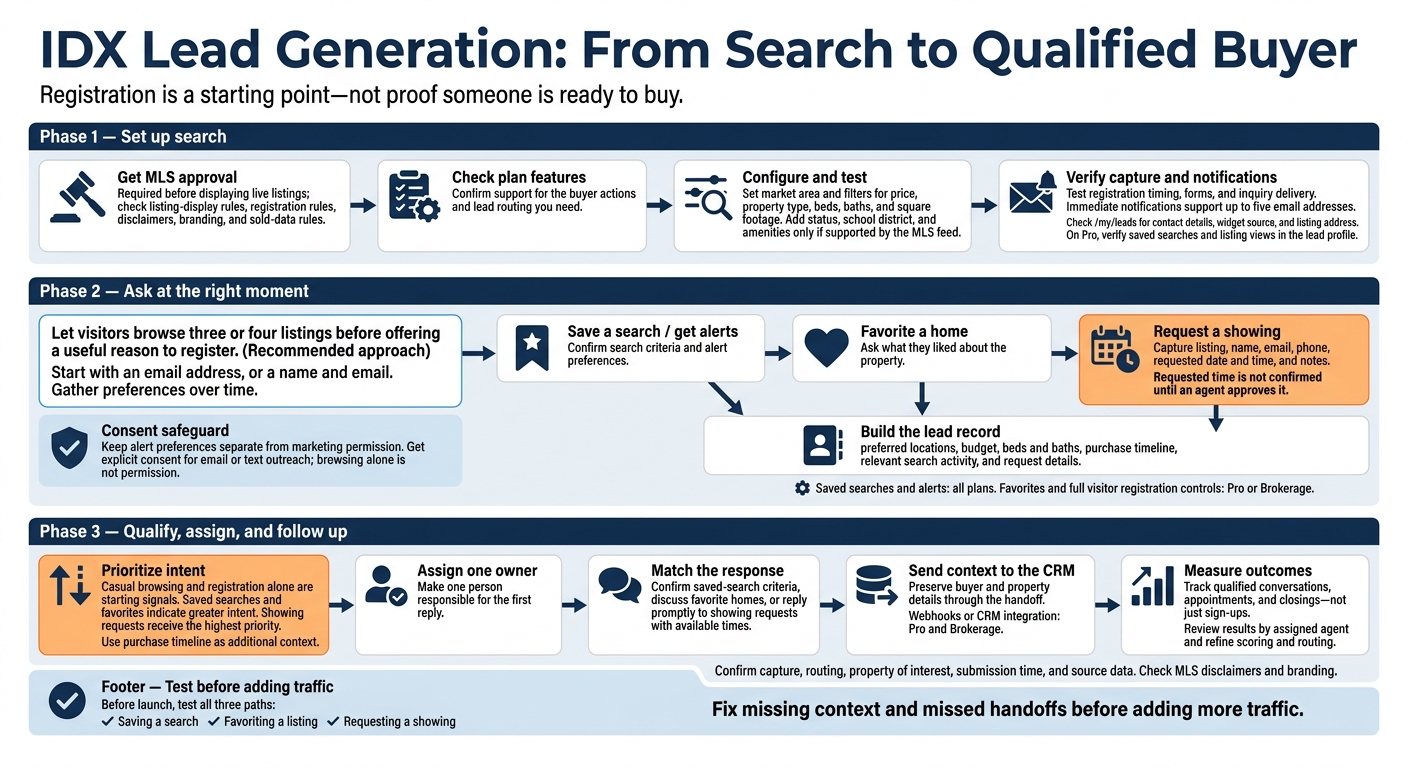
- Set up search: Get MLS approval, check EasyAgentIDX plan features, and test filters, forms, and notifications.
- Ask at the right moment: Tie registration to a useful action, gather buyer preferences over time, and keep alert choices separate from marketing consent.
- Follow up with context: Use search activity and buying timelines to rank leads, assign one person to reply, and send lead details to a CRM.
Before launch, I test saved searches, favorites, and showing requests. After launch, I track <u>qualified conversations and appointments or automated home valuations</u> - not just sign-ups.
IDX Lead Generation: From Search to Qualified Buyer
Step 1: Set Up EasyAgentIDX Search and Lead Capture
Check MLS Rules and Plan Features
Get MLS approval before displaying live listings so buyers can search and become leads. Follow your board’s rules for listing displays, registration, disclaimers, and sold data.
Choose a plan that supports the buyer actions you want to track, such as registration, saved searches, listing alerts, and lead routing.
Set Filters for Buyer Preferences
Build and preview your search widget while you wait for approval. Once approved, connect your live domain and add the single embed script to your website. Set a default market area, then show the filters buyers use most: price, property type, beds, baths, and square footage. Include status, school district, and amenities only if your MLS feed supports them.
Test a few common search combinations to check that the results match your filters. Then confirm that the form and alerts collect the right buyer data.
Open an incognito window and check that the registration prompt appears when you’ve chosen - immediately or after the first results page. In Settings → Notifications, turn on immediate alerts for up to five email addresses. Submit a test inquiry and confirm it arrives. Then open /my/leads to check the contact details, widget source, and listing address. On Pro, also confirm that saved searches and listing views appear in the lead profile so you have context for follow-up.
Once search is live, connect registration prompts to actions that show buyer intent.
Step 2: Tie Registration Prompts to Buyer Actions
Once search is live, ask visitors to register when it gives them a clear reason to do so. Let them browse three or four listings first, then tie the prompt to a useful next step. Match soft prompts to their search activity:
“See similar homes” or “Track this market”.
Offer Saved Searches, Favorites, and Alerts
Give buyers a reason to sign up: saved-search alerts, price-change updates, or the ability to save favorite homes. EasyAgentIDX includes saved searches and alerts on all plans. Favorites and full visitor registration controls require Pro or Brokerage.
Ask for Showing Details and Buying Timeline
For showing requests, collect the listing, name, email, phone, requested date and time, and notes. The requested time isn’t confirmed until an agent approves it.
Keep initial registration short: an email address, or a name and email. Once buyers engage, ask about preferred locations, budget, beds and baths, and purchase timeline. Showing requests and timeline details can signal that someone is ready for follow-up. Collect those details in a follow-up step rather than requiring every field just to save a search.
Keep Request Details and Record Consent
Connect saved searches, favorites, showing requests, and alert preferences to the lead record so agents can use them during follow-up. EasyAgentIDX automatically links registration data to the lead profile and keeps the listing address, widget source, and submission time.
Keep alert preferences separate from marketing permission. Get explicit consent for email or text outreach - browsing alone does not count as permission. Use these signals to score the lead and route it for follow-up. You can also sync leads to Follow Up Boss automatically for streamlined management.
Step 3: Qualify, Assign, and Follow Up With Leads
Once you’ve recorded search activity, use those signals to rank leads, assign them, and plan follow-up.
Prioritize Leads by Buyer Intent
Registration is a starting signal, not proof that someone is ready to buy. Give saved searches, favorites, and showing requests higher scores than casual browsing. Showing requests should get the highest priority.
Use those scores to route each lead to the right person.
Assign Leads and Match Follow-Up to Their Actions
Use lead assignment and routing to make one person responsible for the first reply. Then match the follow-up to what the lead did: confirm saved-search criteria, ask what they liked about their favorite homes, and reply promptly to showing requests with available times.
Connect Lead Records and Track Results
After assignment and outreach, move the lead record into your CRM and measure outcomes. On Pro and Brokerage, use webhooks or your CRM integration.
Track which search actions lead to appointments and closings. Review results by assigned agent to refine your scoring and routing.
Conclusion: Give Each Buyer a Relevant Next Step
Build your EasyAgentIDX workflow around search behavior, buyer preferences, and the action you want each visitor to take. Use each buyer’s actions to guide what comes next, from listing alerts to help scheduling a showing.
Before launch, test all three paths: saving a search, favoriting a listing, and requesting a showing. Confirm that lead capture and routing work, then check the lead record for the property of interest, submission time, and source data.
Check MLS disclaimers and branding, too. After launch, track which paths lead to qualified conversations and showing requests - not just registrations. Fix missing context or missed handoffs before adding more traffic. Each test should confirm that the next action matches buyer intent.
FAQs
How can I test whether registration prompts hurt engagement?
Use your IDX analytics dashboard or Google Analytics (GA4) to record baseline conversion and bounce rates. Then, adjust prompt timing or make registration optional and compare the results over at least two weeks.
Check funnel reports to see where visitors drop off - for example, between viewing and saving listings. If engagement falls after you enable a prompt, it may be adding too much friction at that point in the visitor’s journey.
How should I qualify buyers who haven’t shared a timeline?
Watch behavioral signals instead of asking directly about a timeline. Check your dashboard for saved searches, repeated views of specific properties, or return visits after a period of inactivity.
Use favorite listings and more focused neighborhood preferences to start a helpful, low-pressure conversation about what interests them. These patterns can help you gauge readiness, while the conversation may reveal what’s driving their search and how soon they want to move.
When should I follow up with inactive IDX leads?
Follow up when inactive IDX leads return to your site. Their return may point to renewed interest or a major life change. Check your dashboard for saved search updates, new listing views, or visits after months of inactivity.
You can also send a friendly, low-pressure message after as little as three days without interaction. It’s a simple way to restart the conversation with a buyer who may be waiting for the right time.