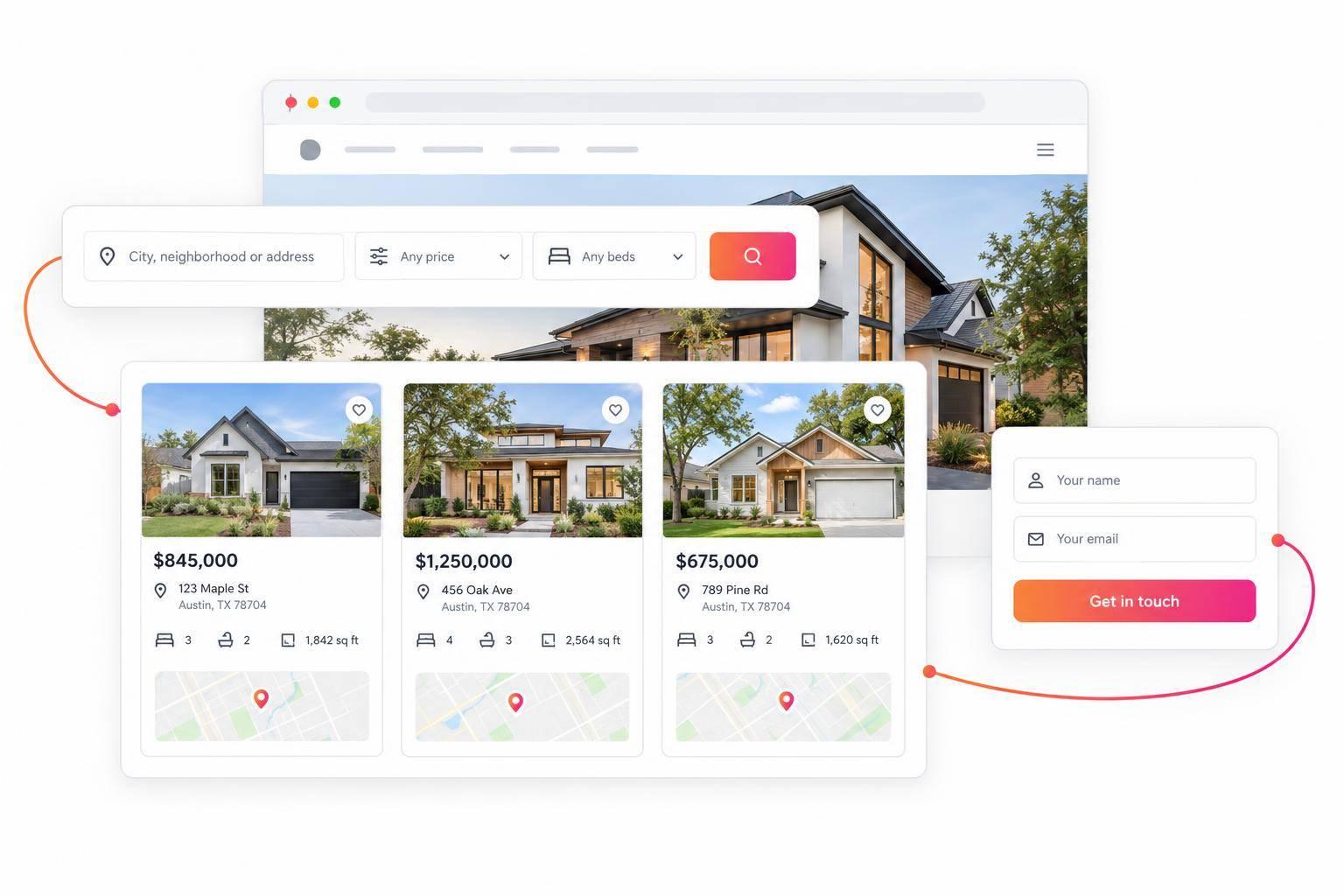
IDX for Wix: Add MLS Listings and Property Search to Your Wix Website
I can add MLS listings to Wix with EasyAgentIDX widgets: get MLS approval, set up the search, then paste the code into a page-level HTML embed. Starter costs $79 per month, plus a $99 board setup fee and any separate MLS fees.
Here’s the setup I’ll walk you through:
- Check access: Confirm MLS eligibility, broker permission, and approval for your Wix domain.
- Build the search: Set filters, listing details, branding, and required MLS notices in EasyAgentIDX.
- Embed and publish: Add the widget to Wix, size it for desktop and mobile, and use HTTPS.
- Set up inquiries: Configure forms, email alerts, and consent language. Pro adds registration controls and saved listings.
- Test and maintain: Check search results, on-site listing links, lead delivery, and listing updates.
<u>MLS approval comes before embedding.</u> Once approved, I’ll show you how to set up and test your published search page.
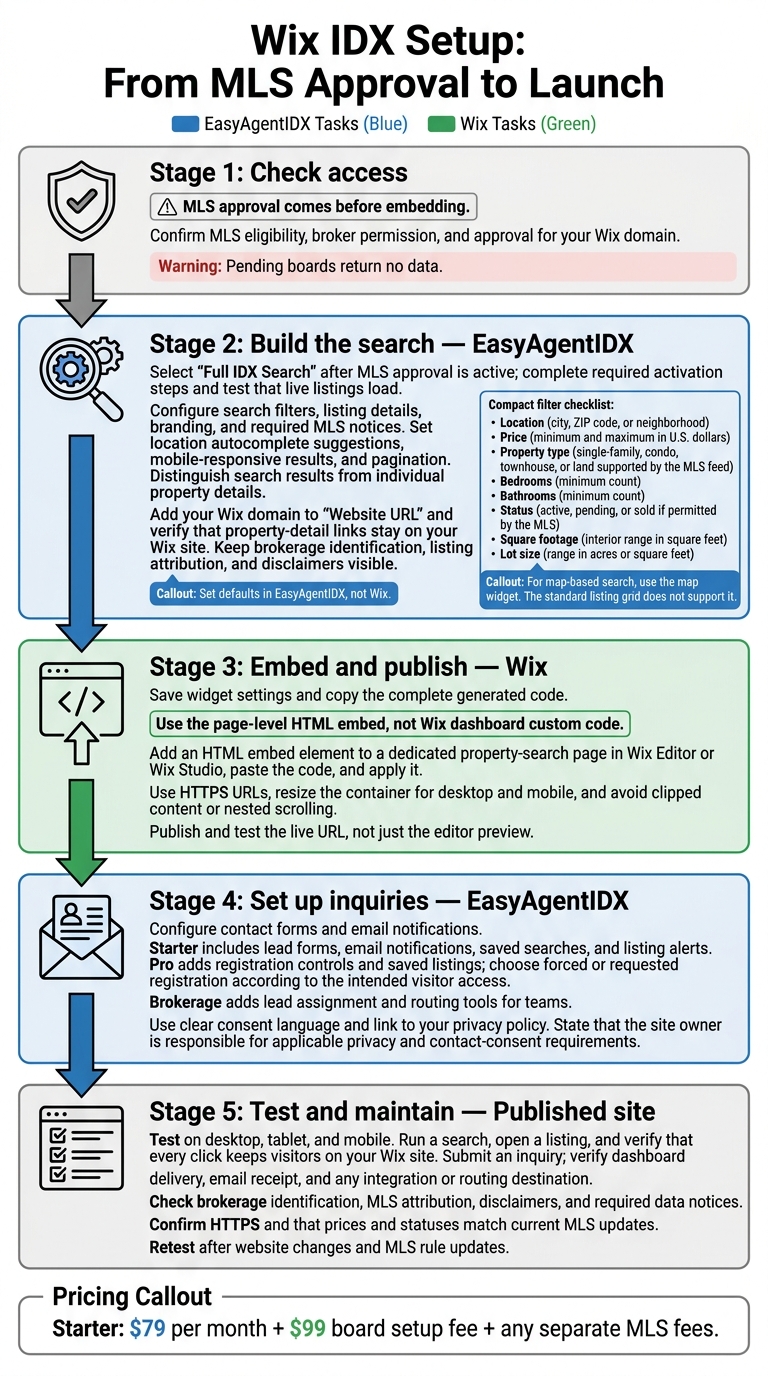
Wix IDX Setup: From MLS Approval to Launch
How to Add IDX to Wix Website | Real Estate
Set Up Property Search in EasyAgentIDX
Once MLS approval is active, open your MLS connection in the EasyAgentIDX dashboard and select the Full IDX Search widget. Complete any required activation steps, then run a test search in an area your MLS covers to check that live listings load.
Configure Search Results and Listing Details
In the widget builder, set up location autocomplete suggestions, mobile-responsive results, and pagination. Use the preview to test a location search, move between results pages, and check readability on a narrow screen.
Search results and property details need separate settings. Results should show properties that match a visitor’s filters. Clicking a property should open its individual details. Where supported, set up photo galleries, price and listing status history, and similar listings.
Add your Wix domain to the Website URL setting so EasyAgentIDX creates property-detail links for your site. Open a listing in the preview and check that its detail page stays on your Wix site.
Set Widget Branding and Listing Notices
Use the color and layout controls to match the widget to your Wix page. Keep brokerage identification, listing attribution, and MLS disclaimers visible, and check that visitors can read them in the preview.
Save your settings before embedding the widget code on your Wix page.
Embed IDX Search on Your Wix Website
Add the EasyAgentIDX Embed Code
Once you’ve saved the widget, add it to a dedicated property-search page in Wix. In Wix Editor or Wix Studio, open the Embed tools and add an HTML embed element to the page. Copy the generated widget code from EasyAgentIDX, paste the complete snippet into the HTML embed code field, and apply it.
Use the page-level HTML embed, not Wix dashboard custom code. Check that the embed loads only secure HTTPS URLs.
Adjust the Page Layout and Publish
Give the widget enough room for filters, results, and listing details. Avoid narrow columns or crowded pages. If content gets cut off or you see scrolling inside another scrolling area, resize the embed container.
Publish the page, then test the live URL on desktop and mobile rather than relying on the editor preview. Make sure filters are accessible, results fit the screen, and MLS notices are easy to read.
If listings don’t appear, check whether the MLS board is approved. For example, users in Colorado can verify IRES MLS coverage to ensure their data feed is active. Pending boards return no data.
Set Buyer Filters and Lead Capture
Once the widget is live, adjust the search defaults and lead settings to fit your market.
Set Location, Price, and Property Filters
Set your defaults in EasyAgentIDX, not Wix. Start with a city, ZIP code, or neighborhood so visitors can narrow their search from there.
| Filter | What to configure |
|---|---|
| Location | Default city, ZIP code, or neighborhood |
| Price | Minimum and maximum in U.S. dollars |
| Property type | Single-family, condo, townhouse, or land options supported by your MLS feed |
| Bedrooms | Minimum bedroom count |
| Bathrooms | Minimum bathroom count |
| Status | Active, pending, or sold, if permitted by the MLS |
| Square footage | Interior size range in square feet |
| Lot size | Range in acres or square feet |
Turn on supported sorting options, such as price low to high, newest listings, or bedrooms. For map-based search, use the map widget. The standard listing grid doesn’t support it.
Set Registration and Lead Notifications
With your filters in place, set up the contact form and email notifications in EasyAgentIDX so inquiries reach you.
Starter includes lead forms, email notifications, saved searches, and listing alerts. Pro adds registration controls and saved listings. Choose forced or requested registration based on how much of the search you want visitors to access before registering.
| Control | Visitor choices | Agent settings | MLS-controlled limits |
|---|---|---|---|
| Search | Change available filters and sorting | Set the default market and criteria | Permitted fields and statuses |
| Lead capture | Submit inquiries or save listings | Configure forms, registration, and notifications | Applicable MLS restrictions |
Use clear consent language and link to your privacy policy. You’re responsible for meeting applicable privacy and contact-consent requirements.
Alongside email notifications, use the lead dashboard to track inquiries and follow-up tasks. For teams, the Brokerage plan adds lead assignment and routing tools.
Test and Launch Your Wix IDX Search
After embedding and configuring the widget, compare IDX solutions and check your live site before sharing it broadly.
Test Search, Listing Details, and Lead Delivery
Test the published Wix page on desktop, tablet, and mobile. Run a search, open a listing, and make sure every click keeps visitors on your Wix site.
Submit an inquiry, then check that the lead appears in your dashboard and the email arrives. If you’ve connected integrations or set up lead routing, confirm the lead reaches the right destination or agent.
Once search and lead capture work, check the required MLS disclosures and listing update timing.
Check Attribution and Listing Updates
Check brokerage identification, MLS attribution, disclaimers, and required data notices on desktop and mobile. Make sure the page loads over HTTPS and that listing prices and statuses match current MLS updates.
Conclusion: Maintain Your Wix IDX Search
Retest after website changes and MLS rule updates to keep the page current.
FAQs
How long does MLS approval take?
MLS approval time depends entirely on your local Multiple Listing Service’s policies and processing times. There’s no standard timeline, so check the EasyAgentIDX coverage directory for your market to find the most accurate estimate for your area.
How often do my MLS listings update?
Your MLS listings update in real time. EasyAgentIDX pulls data directly from your listing feed each time a visitor uses your search - no manual data exports or synchronization needed. That means the property information on your Wix website is current at the time of each request.
Can Google index my embedded IDX listings?
Yes. EasyAgentIDX is designed to make listing content crawlable on your website. Your embedded property search and listing displays are structured so search engines can access and index your IDX listings.
This can improve your site’s visibility in search results and help potential clients find your listings.