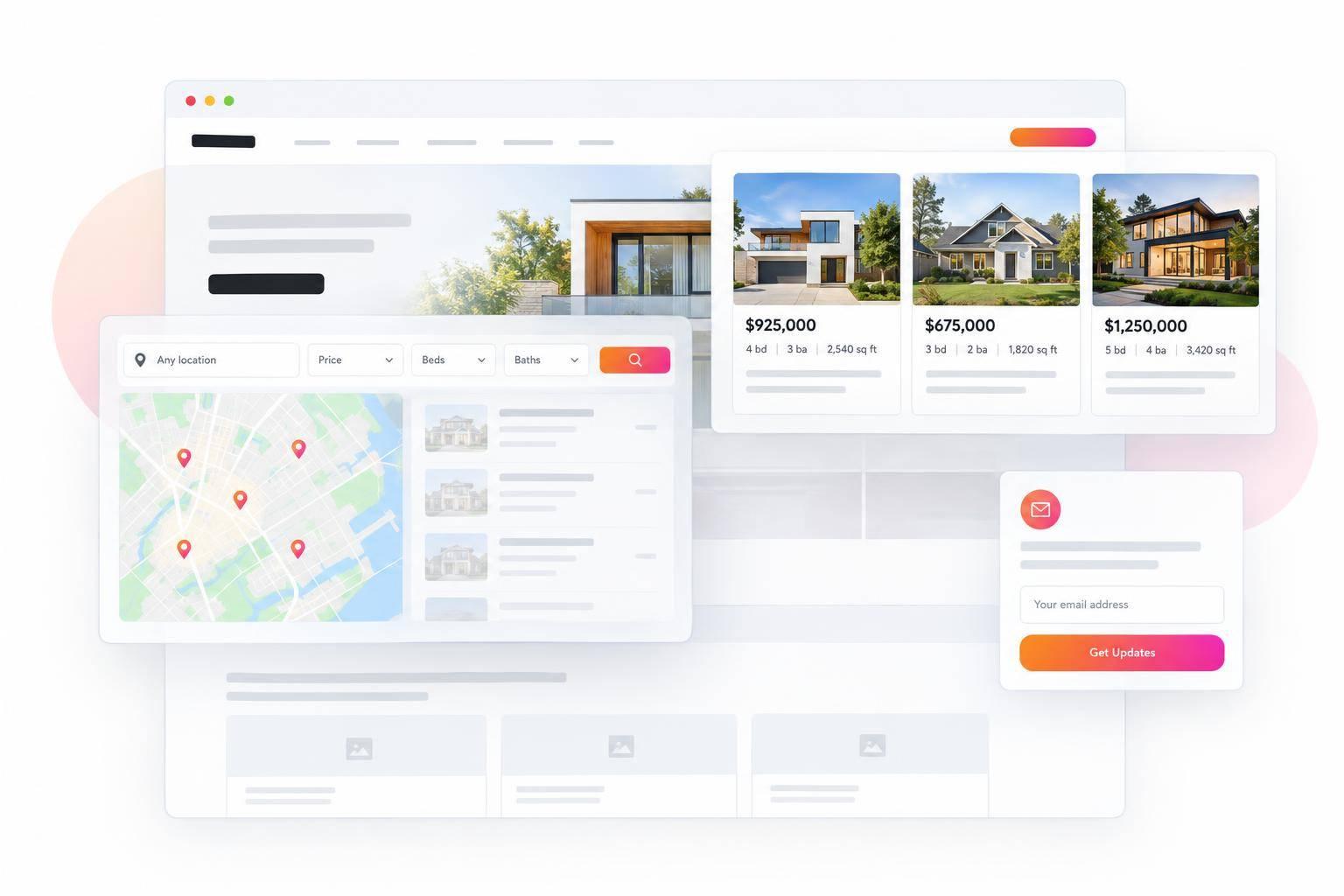
IDX for Webflow: How to Add MLS Search to a Webflow Website
You can add MLS search to Webflow without rebuilding your site. I’ll show you how to confirm MLS eligibility, set up EasyAgentIDX, and paste its widget code into a Webflow Code Embed element.
Start MLS approval early: the article lists a typical wait of 3–14 business days. You can prepare your widgets while you wait, but listings won’t appear until authorization and the data connection are active.
Here’s what I’ll cover:
- Setup: Check your MLS, plan costs, approved domains, and Webflow access.
- Search: Configure filters, listing details, maps, and lead forms.
- Embedding: Add the search widget and test the published page, not just Designer preview.
- Launch checks: Verify MLS notices, mobile layouts, and inquiry delivery.
- Maintenance: Check monthly and after site changes, and investigate stale listing data.
My rule before launch: <u>test both the property search and a real inquiry</u>. A working embed is only part of the job - the listings must display correctly, and leads must reach the right person.
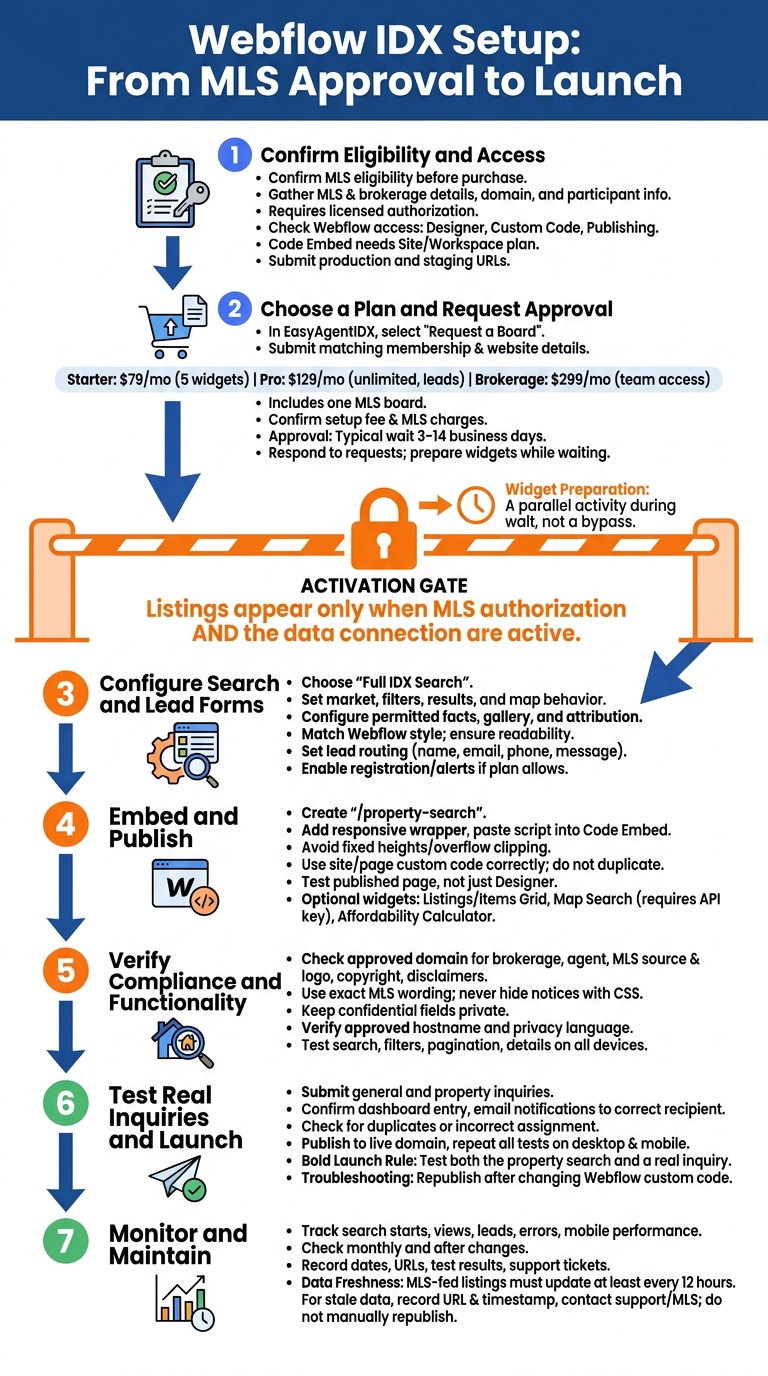
Webflow IDX Setup: From MLS Approval to Launch
Meet the Requirements and Activate EasyAgentIDX
Before embedding IDX in Webflow, confirm the MLS, domain, and access details needed for approval.
Check MLS Eligibility and Webflow Access
Gather your MLS board name, brokerage legal name, website domain, and MLS-required participant details. Confirm your board’s eligibility before purchasing, either during signup or through support. The licensed agent or brokerage must provide authorization.
Check that your Webflow access includes Designer, Site settings, custom code, and publishing. Code Embed access depends on your Site or Workspace plan. Publishing to a custom domain requires a paid Site plan.
Submit both your production domain and Webflow staging URL for approval. Test on the published staging site, because third-party scripts may not run fully in Designer preview.
Choose a Plan and Get MLS Approval
Once eligibility is confirmed, choose a plan based on your needs for active widgets, saved searches, visitor registration, users, and domains. Each listed plan includes one MLS board. Check current pricing and feature limits in the live checkout before buying.
| Plan | Monthly price | Requirements it addresses |
|---|---|---|
| Starter | $79 | Up to five active widgets |
| Pro | $129 | Unlimited embeds, visitor registration, and saved searches |
| Brokerage | $299 | Team access and approved-domain management |
Create an EasyAgentIDX account or sign in, then open MLS Boards → Request a Board and select your MLS. Submit membership and brokerage details that match MLS records, your website URL, and any requested authorization documents. Before paying, confirm the $99 initial board setup fee and any separate MLS charges.
While you wait for approval, gather any license or membership documents the MLS requests. Check the dashboard message thread and respond to document requests.
Pasting an embed won’t activate listing data until MLS authorization is confirmed. Before treating missing listings as a Webflow code problem, wait for confirmation that MLS authorization and the data connection are active. Keep the activation email handy for troubleshooting.
Set Up IDX Search and Embed It in Webflow
Configure Filters, Listing Details, and Lead Forms
Once MLS access is active, open the EasyAgentIDX widget builder and choose Full IDX Search. Set your default market area, filters, results per page, pagination, and map behavior. Add property facts permitted by your MLS, photo galleries, similar listings, and attribution.
Use Appearance settings to match your Webflow colors and typography without making controls hard to read. Set up lead forms, recipients, and routing, keeping fields to name, email, phone, and message. Enable registration, saved listings, saved searches, and alerts only if your plan supports them. Submit a test inquiry to check that it reaches the right agent or office.
Embed Full IDX Search on a Webflow Page
Create a dedicated /property-search page, add a responsive wrapper, and paste the generated script into a Code Embed element. This will be your main MLS search page. Include any required attributes and give the wrapper enough width and height. Avoid fixed heights or overflow clipping that could cut off filters, results, galleries, or maps.
Use page-level or site-level custom code only when EasyAgentIDX explicitly requires it. Don’t load the same script in both places. Test the published page - not just Designer - to check that filters update results, pagination works, and property-detail links open correctly.
Once the main search page works, add supporting widgets where visitors are likely to start looking for properties.
Add Listing, Map, and Calculator Widgets
Use Listings Grid or Carousel to display homepage or neighborhood inventory, and Items Grid or Carousel for MLS-specific listings. Add Map Search for location-based browsing, and provide the required Google Maps API key. Place an Affordability Calculator on buyer-focused pages.
Give each widget its own responsive wrapper with enough room for controls. Test mobile scrolling, map controls, and form fields. Link navigation to /property-search instead of crowding every page with the full search interface.
Review MLS Compliance and Test Your Site
Once the page is live, check MLS compliance and confirm that leads reach the right recipients before launch.
Check MLS Attribution and Disclosures
Review search results and property pages on the approved domain. Make sure the brokerage name, listing-agent details, MLS source, MLS logo, copyright notice, required disclaimers, and noncommercial-use notice are visible. Use the MLS’s exact wording, and don’t hide notices with CSS.
Compare listing statuses, photos, prices, and update timestamps with the MLS feed and dashboard. Keep confidential fields - including showing instructions and property-security details - off public pages. Verify the exact approved hostname, and review privacy, registration, and alert-consent language with the brokerage and MLS.
Once those checks are complete, test search features and lead routing on the new platform.
Test Search, Property Details, and Lead Delivery
Run location searches with both valid and invalid inputs. Check filters, sorting, pagination, filter resets, and back-button behavior. Open property pages and test galleries, status labels, and map controls. On desktop, tablet, and mobile, check for clipped controls, hard-to-read text, horizontal scrolling, and missing attribution.
Submit both a general inquiry and a property inquiry. Record the submission time, source page, recipient, and consent. Then confirm that each inquiry appears in the dashboard, triggers email notifications, and reaches any connected CRM. If enabled, test registration, saved searches, alerts, and cancellation controls. Watch for duplicate notifications and leads assigned to the wrong agent.
Fix Embed Issues Before Launch
Run the checks below before contacting support. Publish again after changing Webflow custom code. If the problem remains, send EasyAgentIDX the published URL, timestamp, browser, affected search, and browser console error - not just a screenshot.
If a check fails, isolate the cause before launch.
| Observed issue | Likely cause | Recommended check |
|---|---|---|
| Blank embed | Unpublished or duplicate scripts, inactive account, blocked origin, or zero-height wrapper | Check script loading, account activation, origin errors, and wrapper height. Load each required script only once. |
| Missing listings | Inactive feed or restrictive defaults | Check feed status, market, filters, and permitted listing statuses. |
| Domain approval error | Hostname mismatch | Compare the browser hostname with approved root, www, subdomain, and staging records. |
| Clipped results | Fixed height or hidden overflow | Check parent containers for height and overflow restrictions. |
| Broken mobile layout | Fixed-width container or oversized map | Check container and map widths in portrait and landscape. |
| Missing attribution | Omitted, hidden, or clipped notices | Check notice visibility on search results and property-detail pages. |
Conclusion: Launch and Maintain Your IDX Search
Once your site is live, move from setup to monitoring. Publish to the approved live domain, then repeat the same search and test inquiry on desktop and mobile to confirm delivery.
Use your launch-day results as a baseline for tracking. Review analytics for your Webflow IDX page through EasyAgentIDX, Webflow, and connected analytics tools. Track search starts, listing views, lead form submissions, delivery errors, and mobile vs. desktop performance. These numbers show where visitors drop off.
Build a fixed maintenance routine around those metrics. Check the site monthly and after any widget, layout, code, or domain change. Record the date, production URL, test results, and any support ticket numbers.
MLS-fed listings must update at least every 12 hours. Stale data may point to a feed or sync problem. Record the property URL and timestamp, then contact EasyAgentIDX support or the MLS rather than manually republishing the listing.
FAQs
Can my Webflow IDX listings appear in Google search?
EasyAgentIDX widgets use JavaScript to load listings on your Webflow site instead of displaying them as static content. Visitors can see the listings, but Google may not crawl or index individual property details in the embedded search.
If you build a custom setup or try to make listing data visible to search engines, you must follow your MLS feed’s display rules and attribution requirements.
Can I connect multiple MLS boards to my site?
Yes. Every plan includes one MLS board connection. You can add as many boards as you need for $79 per month each, plus a one-time $99 setup fee per board for application processing.
To add a board, go to MLS Boards in your dashboard, select the board, and submit your membership details for approval. Once approved, you can display listings from all connected boards on your site.
What happens to my IDX search if I change domains?
Your IDX search will keep working when you update the authorized domain settings in your EasyAgentIDX dashboard. EasyAgentIDX uses registered-domain authorization to protect your embeds, so you must authorize the new domain before it can display your widgets.
Then, move your existing script tags to the new site. You don’t need to replace your IDX service when you switch website providers or domains.