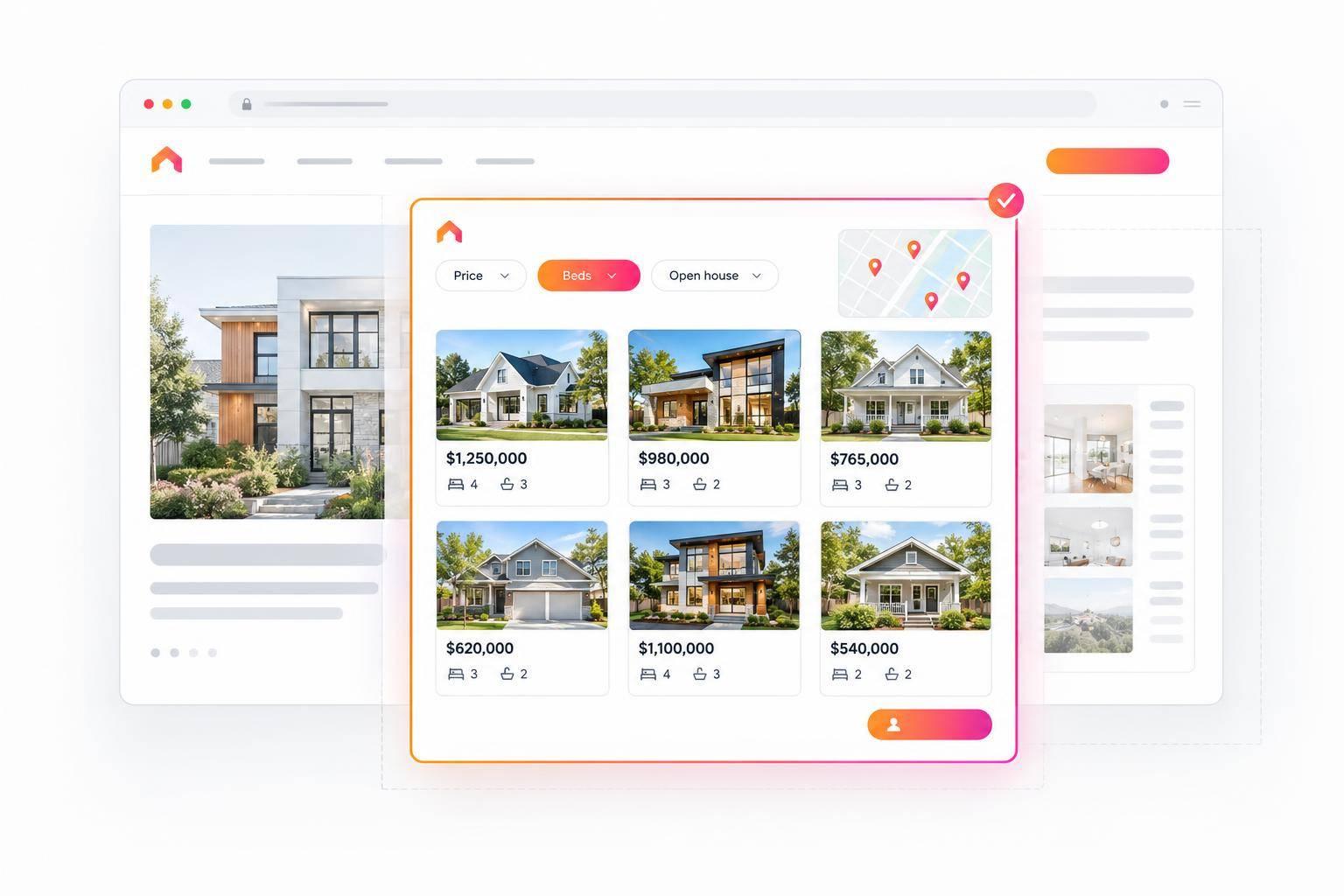
IDX for Framer: Add Live MLS Listings With One Embed
You can add MLS search or listings to Framer with one EasyAgentIDX embed. I’ll show you how to paste the complete code into Framer’s Embed component in HTML mode, then test it on your published site.
Before listings appear, you need MLS access and domain approval. Approval typically takes 3–14 business days, depending on the board.
Here’s what I’ll cover:
- Setup: Check account access and costs, then choose search, grid, carousel, curated listings, or map search.
- Widget settings: Set filters, branding, lead forms, and required MLS credits.
- Framer placement: Add the embed, size it for mobile, and fix blank or clipped displays.
- Live testing: Check search, listing details, data updates, and inquiry delivery.
- Launch checks: Confirm domain approval, disclaimers, and MLS display rules.
My launch rule: <u>don’t publish for visitors until search and lead delivery pass</u>. The embed connects the listing interface; it doesn’t replace MLS permission or compliance checks.
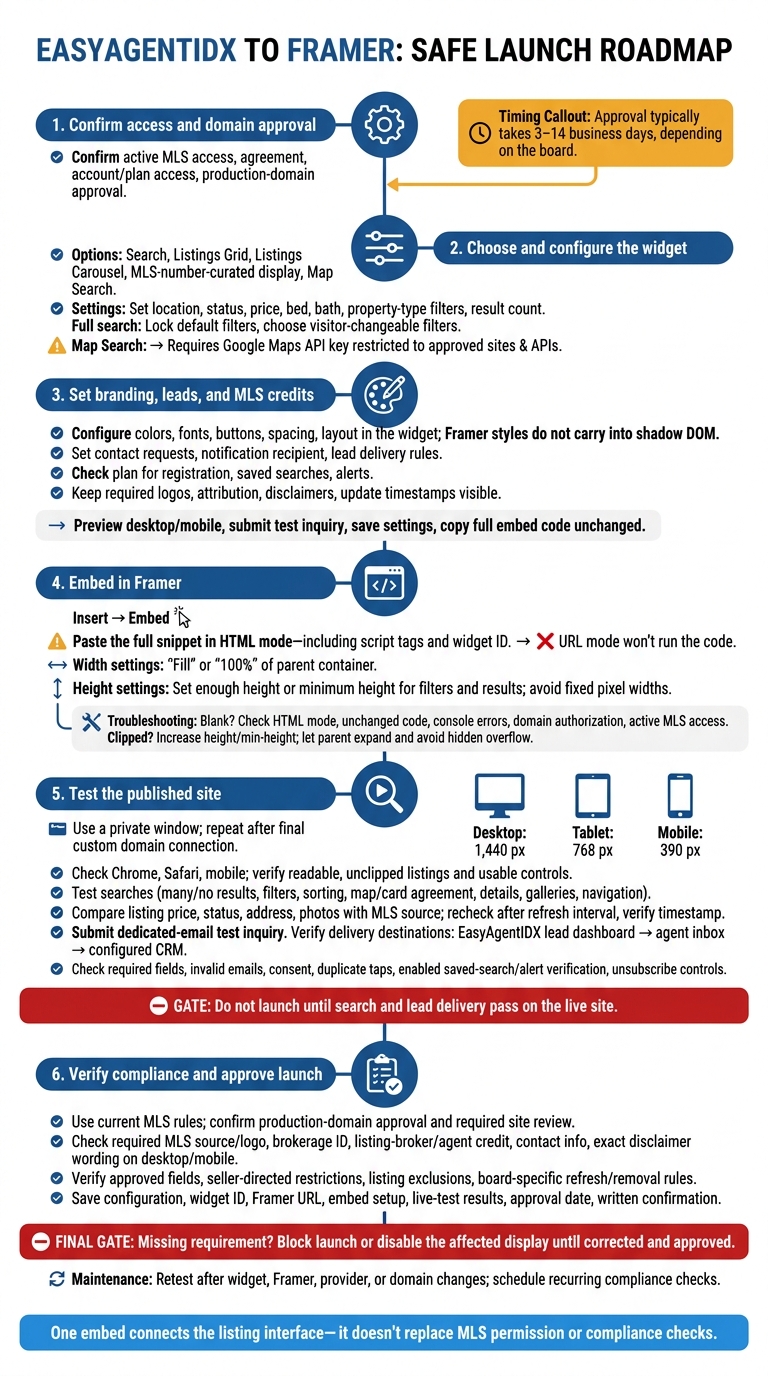
IDX for Framer: Setup-to-Launch Workflow
Set Up Your EasyAgentIDX Widget
Choose a Widget and Set Listing Filters
Choose your listing interface in the EasyAgentIDX dashboard. These settings control what your single Framer embed displays. Use the full Search widget for a dedicated “Search Homes” page, a Listings Grid or Listings Carousel for a compact section, or an MLS-number-curated display for featured properties. For location-based browsing, choose Map Search and add your Google Maps API key, restricted to approved sites and APIs.
Set the location, status, price, bed, bath, and property-type filters. Then adjust the result count to fit your Framer page. For full search, lock the default filters and show only the filters visitors should change. For a curated grid, use filters to define which listings appear. Keep your selection broad enough to return results.
Confirm prices display as $450,000 and area as 1,800 sq ft where the widget allows formatting controls.
Set Branding, Lead Forms, and Attribution
In Appearance, set colors, fonts, buttons, spacing, and layout to match your Framer page. The widget loads in a shadow DOM, so Framer styles won’t carry over. Make sure prices, status labels, and buttons are easy to read.
Choose when to request contact details, set the notification recipient, and add any lead delivery rules. Check your plan’s access before enabling registration, saved searches, or alerts. Add the MLS and brokerage profile details. Keep required logos, attribution, disclaimers, and update timestamps visible.
Check the desktop and mobile previews for readable cards, working property links, and visible attribution. Submit a test inquiry to confirm it reaches the right inbox. Save your configuration, then copy the embed code unchanged.
Next, paste the code into Framer’s Embed component.
Add the Embed to Framer
Paste the Code into Framer’s Embed Component
Open your chosen page in Framer. Select Insert → Embed and place the component where you want the listing interface to appear.
Paste the full embed snippet in HTML mode, including the script tags and widget ID. URL mode won’t run the code.
Set the width to Fill or 100% of the parent container. Add enough height or minimum height to show the filters and results. Avoid a fixed pixel width, which could cut off the widget on smaller screens.
Check the page in Preview, then Publish and test the live page. Framer’s editor may show a blank placeholder even when the embed works.
Fix Loading and Display Problems
If the live embed is blank or cut off, check the following:
- Blank embed: Confirm that you’re using HTML mode and that the snippet matches the generated code. Check DevTools for console errors, blocked scripts, failed requests, mixed-content warnings, or an invalid account or widget ID. As a final check, confirm domain authorization and active MLS access.
- Clipped listings: Increase the embed’s height or min-height. Make sure the parent section can expand and doesn’t hide overflow.
Use Project Settings → Custom Code only for global scripts required by the modern IDX platform provider. Follow the provider’s placement instructions, and don’t add the same script in both places.
Once the embed displays, test the layout, search, updates, and lead delivery on the live site.
How to Embed IDX Listings in Framer – Real Estate Website Tutorial for Realtors
Test Listings and Lead Forms on the Live Site
Once the embed is published, test the live site - not just the editor preview.
Open the published Framer URL in a private window to check live scripts, cookie handling, and domain permissions. Repeat these checks after connecting the final custom domain.
Check Desktop, Tablet, and Mobile Layouts
Test at 1,440, 768, and 390 px, then resize between breakpoints. Check the site in Chrome, Safari, and on mobile. Search controls, cards, prices, photos, maps, pagination, and listing details should remain usable without unwanted horizontal page scrolling. Watch for clipped text, oversized images, overlapping controls, and buttons that are hard to tap.
Run searches that return many results and no results. Open a listing detail page, then return to the results. Confirm that details, map controls, pagination, and required MLS attribution stay visible and unclipped.
On mobile, test autocomplete and form fields with the keyboard open. Use both touch and keyboard navigation to check that every control remains reachable.
Test Search, Listing Updates, and Lead Delivery
Once the layout passes, check search behavior, listing accuracy, and lead delivery.
Test location autocomplete, ZIP code, price, beds, baths, property type, and any enabled status filters. Apply and clear filters, change sorting, and confirm that map markers match the cards.
Open photo galleries and compare a known listing’s price, status, address, and photos with an MLS source. Check again after the provider’s stated refresh interval, and verify the displayed last-updated timestamp.
Submit one test inquiry on the live site using a dedicated email address. Confirm delivery beyond the on-screen success message: the inquiry should reach the EasyAgentIDX lead dashboard, agent inbox, and configured CRM. Then test required fields, invalid emails, consent, and whether duplicate taps create duplicate submissions.
If saved searches or alerts are enabled, test verification emails, matching listings, and unsubscribe controls. Record the live URL, viewport widths, listing IDs, update times, and delivery results. Do not launch until search and lead delivery pass on the live site.
Check MLS Compliance Before Launch
After live testing, run a final MLS compliance check before launch.
Use your MLS’s current rules as your launch checklist. Confirm an active MLS agreement, authorized access, and approval for the production domain. Save the approved filters, branding, lead-form settings, widget ID, Framer URL, embed setup, and live-test results. This check is the final sign-off before the page goes live.
Review Attribution
On the published Framer page, check that the embed meets each requirement:
- Every listing view with MLS data includes the required MLS source or logo, brokerage ID, listing-broker or agent credit, and contact information.
- The MLS’s exact disclaimer wording is readable near the listing content on desktop and mobile.
- Only MLS-approved fields appear.
- Seller-directed address restrictions and listing exclusions are honored, and data refresh and removal timing follow board rules.
Save the approval date and written confirmation for the page’s listing display. Check whether your brokerage or MLS requires a site review before launch. Retest after changes to the widget, Framer, provider, or domain, and schedule recurring compliance checks. If a required item is missing, block launch or disable the affected display until it’s corrected and approved.
FAQs
What does adding IDX to Framer cost?
EasyAgentIDX plans start at $79 per month, with one MLS board connection included. Each board has a one-time $99 setup fee for application processing and technical integration.
Additional boards cost $79 per month each. Brokerage plans include unlimited boards.
Optional add-ons include the home valuation lead capture tool. All plans are month-to-month - there’s no annual contract.
Can I combine listings from multiple MLSs?
Yes. EasyAgentIDX supports multiple MLS board connections for agents and brokerages working across MLS areas.
Every plan includes one MLS board connection. With Starter and Pro, you can add boards for a monthly fee. The Brokerage plan includes access to unlimited boards.
Once your boards are approved and connected, your widgets can display live listings from those combined sources.
Will embedded listings help my site’s SEO?
Yes, embedded listings help your site’s SEO by adding up-to-date, relevant MLS content that keeps visitors engaged. EasyAgentIDX’s responsive widgets - including property search, listing grids, and detailed property pages - encourage visitors to stay longer and interact with listings.
Your analytics dashboard lets you track searches, listing views, and saved favorites, so you can see what interests your audience.