How to Add MLS Listings to Your Website: A Complete IDX Guide
How to Add MLS Listings to Your Website: A Complete IDX Guide
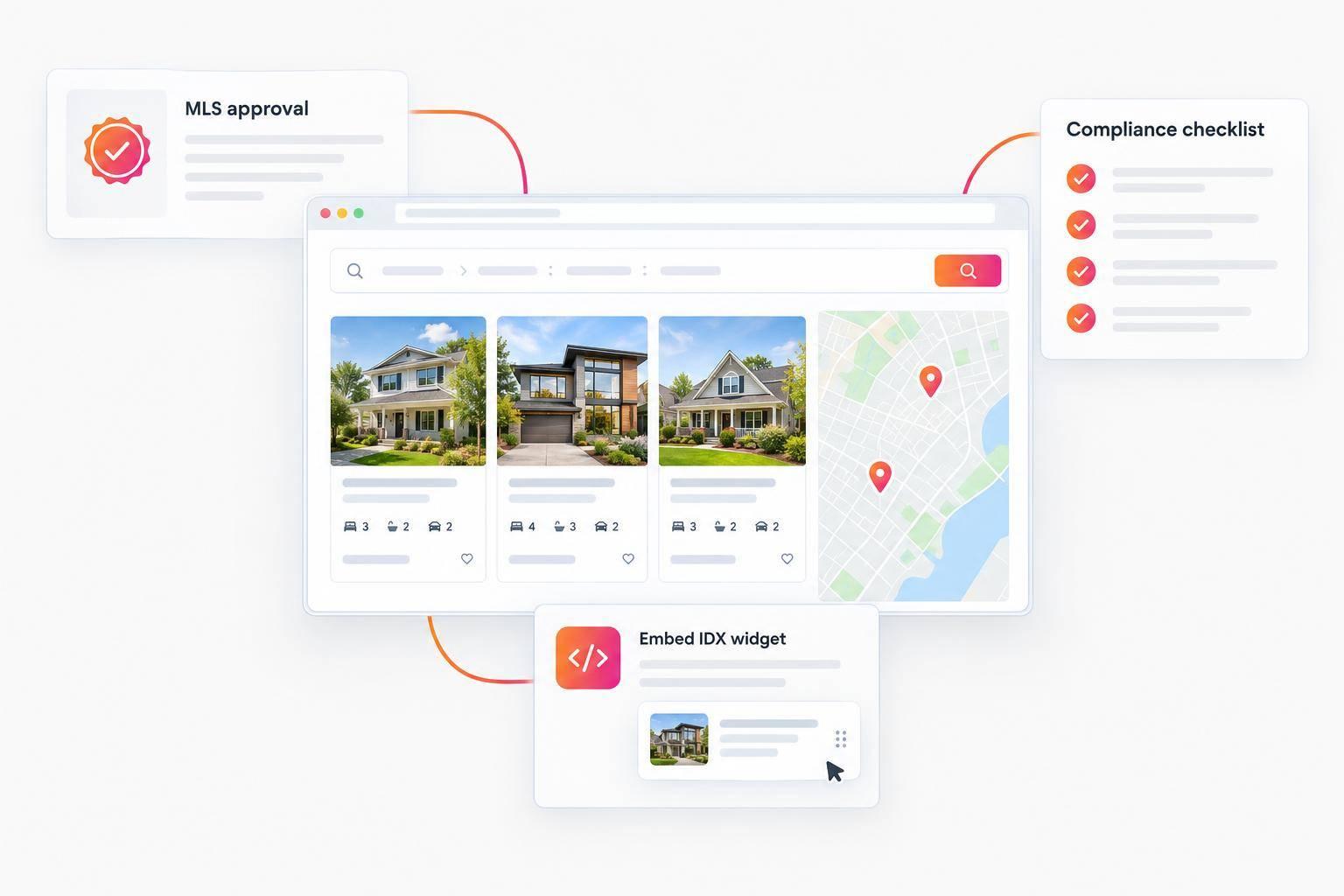
To add MLS listings to your website, get MLS approval, choose an IDX plan, and paste a search widget into your site. I’d budget at least $79/month plus a $99 setup fee for EasyAgentIDX Starter, before any separate MLS fees.
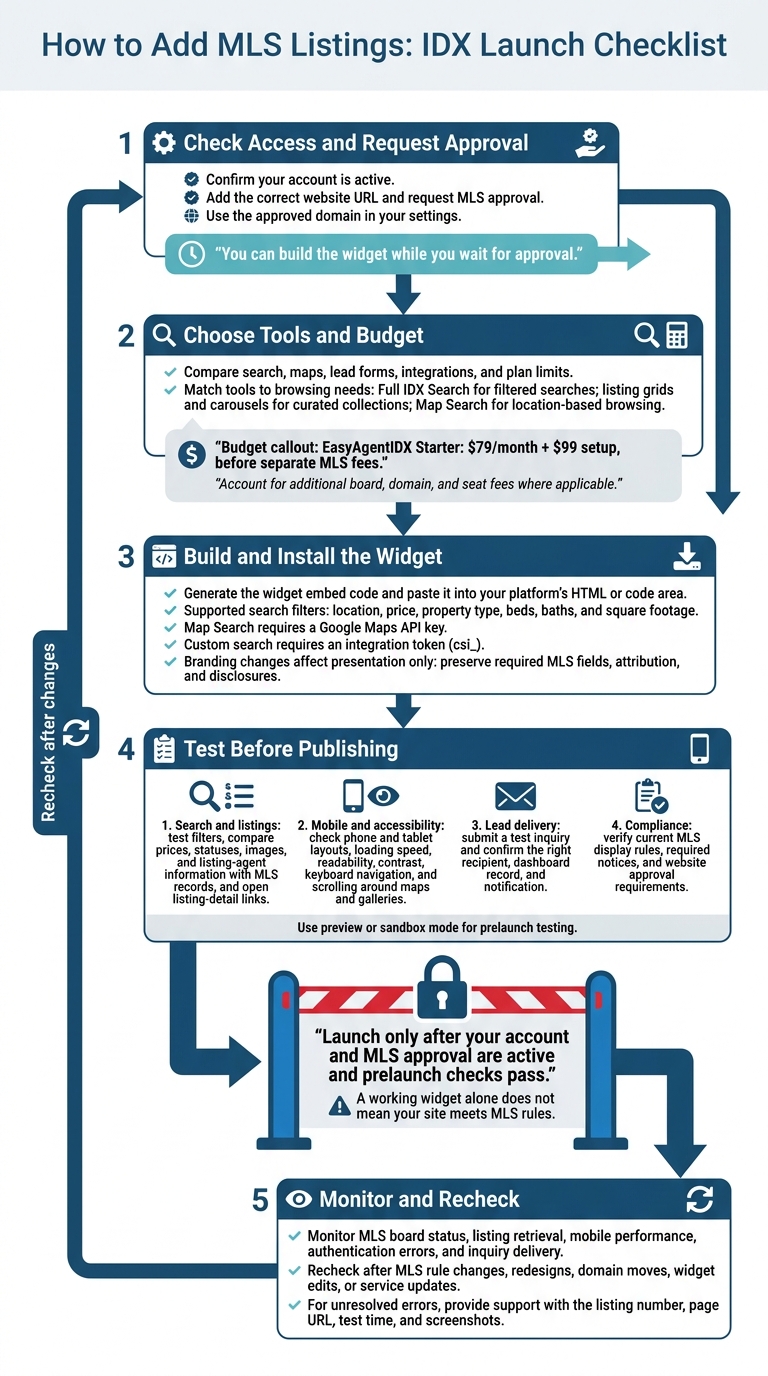
Here’s the checklist I’d use:
- Check access: Confirm your account is active, your MLS connection is approved, and your website URL is correct.
- Choose your tools: Compare search, maps, lead forms, integrations, and plan limits against other providers. Add board, domain, and seat fees where needed.
- Install the widget: Use your platform’s HTML or code area. Map Search needs a Google Maps API key; custom search needs an integration token.
- Test before launch: Check listing accuracy, detail links, mobile browsing, required MLS notices, and inquiry delivery.
- Keep checking: Review feed access and display rules after site edits or MLS changes.
My launch rule: <u>approval comes first</u>. A working widget alone doesn’t mean your site meets MLS rules.
How to Add MLS Listings: IDX Launch Checklist
Choose an EasyAgentIDX Plan and Set Your Budget
Pick a plan that fits your MLS board, search volume, and how you handle leads. Once approval is confirmed, compare the features and costs below.
Choose Your Search and Lead Features
Match your widgets to how visitors browse. Use Full IDX Search for filtered searches, listing grids and carousels for curated collections, and Map Search for location-based browsing. The visual builder creates one embed code for each layout, keeping it responsive on mobile and desktop. Map Search requires a Google Maps API key.
Starter includes search widgets, lead capture forms, email notifications, a lead dashboard, and an analytics dashboard. Pro includes registration controls, saved listings and searches, listing alerts, advanced analytics, GA4 forwarding, webhooks, Follow Up Boss, and developer access.
Before you subscribe, confirm the customization options and integrations, API limits, and support.
Compare Plan Prices and Setup Fees
| Plan | Monthly price / intended user | Included MLS boards | Active widgets | API requests per minute | Team and domain features | Setup fee |
|---|---|---|---|---|---|---|
| Starter | $79 / individual agents | 1 | 5 | - | - | $99 |
| Pro | $129 / professional agents | 1 | Unlimited | 120 | - | $99 |
| Brokerage | $299 / teams and brokerages | 1 | - | 300 | 5 seats; multiple approved domains; lead routing | $99 |
| Agency Partner | $499 / marketing and web agencies | 1 | Unlimited | 600 | Unlimited seats; client workspaces; multi-domain support | $99 |
| Enterprise | Custom / large organizations | Unlimited across offices, subject to custom terms | Unlimited | 1,000 listed; confirm contracted limit | Unlimited seats; multi-office management; custom domain terms | Custom |
Budget for the $99 initial board setup fee separately from your subscription. Each additional MLS board costs $79/month plus $99 setup.
For Brokerage and Agency Partner, additional domains cost $29/month plus $99 setup per domain. Extra Brokerage seats cost $10/month each. Your MLS may also charge separate data-access fees. Enterprise charges and coverage follow custom terms.
After choosing your plan, create your account and generate the embed code.
Set Up IDX Listings on Your Website
Create Your Account and Build a Search Widget
Once you’ve selected a plan, connect your domain and create your search widget.
Log in, add your website URL, and request MLS approval. Use the approved domain in your settings. You can build the widget while you wait for approval.
- Set approved search filters: Use only location, price, property type, beds, baths, and square footage.
- Generate the widget embed code: Paste it onto your search page using the placement guide below.
- Check the listings before launch: Review listing cards, photos, and detail-page links.
Add the Embed to Your Website Platform
You can add IDX to your existing site without rebuilding it. Paste the widget code into the right embed area for your platform.
| Platform | Embed location | Platform-specific constraint |
|---|---|---|
| WordPress | Custom HTML block or theme integration | Standard block editor or Real Estate 7 theme |
| Wix | HTML embed element | Confirm support for the supplied embed code |
| Squarespace | Code block or code injection | Subscription must support custom scripts |
| Webflow | Embed element | Confirm support for the supplied embed code |
| Custom HTML or Next.js | Script/API component | Custom search requires an integration token (csi_) |
Set Up Branding, Maps, and API Connections
After adding the embed, adjust colors, layouts, navigation, and lead-capture tools. Branding changes affect presentation only. Don’t change required MLS fields, attribution, or disclosures. For Map Search, add your Google Maps API key.
For a custom search experience, generate the csi_ token under Settings → Integrations → ChatSpark. Copy it immediately - it may not appear again. Keep your website URL current so listing links and detail pages point to the correct site.
Before publishing, test search results and the mobile layout, and check MLS notices.
Test Your IDX Search and Check Compliance
Test Search Results and Listing Updates
Once your IDX embed is live, test the search flow and check MLS compliance before publishing. Work in preview or sandbox mode. Try supported city, ZIP code, neighborhood, and MLS-number searches. Check price, beds, baths, square footage, and property type filters one at a time, then combine them.
Test every search method your site uses and confirm it returns the expected listings. Open listing details and check similar properties if that feature is included.
Compare results with MLS records, including prices, statuses, images, and required listing-agent information. Track when listings appear or disappear, and confirm those changes follow your board’s display rules.
Check Mobile Access and Lead Delivery
Test your site on phones and tablets using supported browsers. Check loading speed, text readability, contrast, and keyboard navigation. Make sure maps and galleries don’t block scrolling.
Submit a test inquiry with contact information you control. Then open the agent or administrator view and confirm the inquiry reaches the right recipient, appears in the dashboard, and triggers a notification.
| Problem | What to check |
|---|---|
| Blank results | Confirm the relevant MLS connection is Approved, loosen filters, and check token authentication for custom integrations. |
| Stale or missing listings | Feed timing or MLS display rules may explain a missing listing. It doesn’t always mean the setup is broken. |
| Broken maps | Check Google Maps API-key settings and any error message shown. |
| Property details not loading | Confirm the listing page is enabled and the embed code is current. |
| Failed notifications | Check the intended recipient and dashboard record. |
Keep MLS Approval and Notices Current
Compare your site and widget settings with your MLS’s current IDX display rules, website approval requirements, and compliance notices.
Recheck display and access before launch and after MLS rule changes, redesigns, domain moves, widget edits, or service updates. Monitor listing retrieval and log unresolved errors. When contacting MLS support, include the listing number, page URL, test time, and screenshots.
Conclusion: Launch Your Approved IDX Search
Launch only after your account and MLS approval are active. Before publishing, set your website URL and use sandbox mode to test search results and listing-detail links. Once your site is live, monitor MLS board status, mobile performance, and authentication errors.
FAQs
Do I need a real estate license to use IDX?
Yes, you generally need a real estate license to use IDX. MLS boards require active membership and approval before you can display their listing feeds on your website.
EasyAgentIDX also requires an approved MLS board connection. That means you must be a licensed agent or broker in good standing with your local board.
How long does MLS approval take?
MLS approval times vary by board. EasyAgentIDX can’t display listings on your website until your connection status changes from pending to approved. Check your account settings to confirm when the connection is finalized.
Your local MLS board handles approval, so contact it directly for its processing timeline.
Can IDX listing pages improve my website’s SEO?
Yes - IDX listing pages can help your website’s SEO by adding up-to-date, indexable property content that search engines can crawl. They also provide direct links to property detail pages with real-time MLS data.
With EasyAgentIDX, you can embed searchable listings with filters for location, price, beds/baths, and square footage. Up-to-date property detail pages give visitors content they can link to, helping bring in page views over time and providing content relevant to searches.
Want IDX widgets for your real estate website?
Try EasyAgentIDX Free →